Skip to content
Child using an iPad with an AAC communication app (symbol-based grid) while interacting with an adult, supporting speech and communication development.

How to Easily AirDrop AAC Pagesets Between iPads (Step-by-Step Guide)

A practical guide for speech pathologists transferring AAC vocabulary between iPads

Transferring AAC pagesets between iPads is one of the fastest ways to preserve and share customised communication systems. The easiest method is to AirDrop AAC pagesets, which allows you to quickly send AAC backups and vocabulary files without needing internet access.

In this guide, you’ll learn exactly how to AirDrop AAC files from apps like Proloquo2Go, TD Snap, LAMP, TouchChat, Grid for iPad and more—so you can seamlessly transfer vocabulary between devices during trials, therapy, or handovers.

Key summary

  • AirDrop is the fastest way to transfer AAC pagesets between iPads
  • Most AAC apps allow backup, export and / or syncing of vocabulary files
  • Files can be shared directly via AirDrop and imported on another device
  • This is especially useful during AAC trials or device transitions
  • Always rename files with client name and date for easy identification

Why transferring AAC pagesets matters

When trialling an AAC system, speech pathologists often customise vocabulary—adding personal words, editing buttons, and building meaningful communication layouts.

If the device is returned or replaced, that work can be lost without a proper transfer process.

Using AirDrop ensures:

  • Reliable transfer without needing internet
  • No loss of customised vocabulary
  • Faster transitions between devices
  • Easy sharing with families and other clinicians

When should you use AirDrop to transfer AAC files?

AirDrop is particularly useful when:

  • A trial AAC device is being returned
  • You need a quick backup of a client’s vocabulary
  • Transferring between therapy and home devices
  • Internet access is limited or unreliable

Because AirDrop uses Bluetooth and Wi-Fi directly, transfers are typically fast and dependable.

Apps covered in this guide

Common AAC file types

Knowing file types can help you quickly identify backups:

  • Proloquo2Go.p2gbk
  • TD Snap.sps
  • LAMP → .sps
  • Grid for iPad → .gridsetz
  • TouchChat / LAMP Words for Life.ce
  • GoTalk Now.gtbz
  • Pictello.pictello

How to set up your device for AirDrop

Before transferring files:

  1. Go to Settings → General → AirDrop
  2. Select Everyone for 10 Minutes
  3. Ensure both devices have Wi-Fi and Bluetooth enabled

To accept a file:

  • Tap Accept when prompted
  • Enter the verification code if required
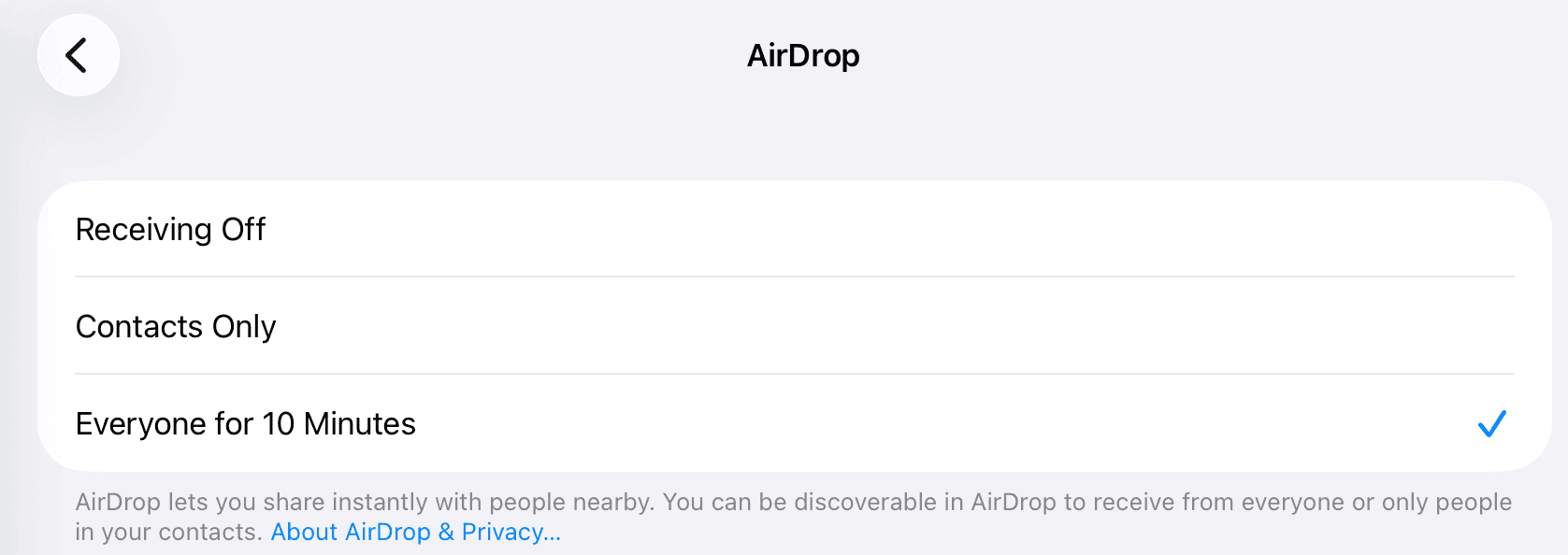
Screenshot of iPad AirDrop settings with options “Receiving Off,” “Contacts Only,” and “Everyone for 10 Minutes,” with “Everyone for 10 Minutes” selected.

How to AirDrop AAC pagesets (quick steps)

  1. Export or back up the page set in the AAC app
  2. Save the file to your device (if required)
  3. Tap Share → AirDrop
  4. Select the receiving iPad
  5. Open the file on the new device to import

AirDrop from Proloquo2Go

Export and AirDrop

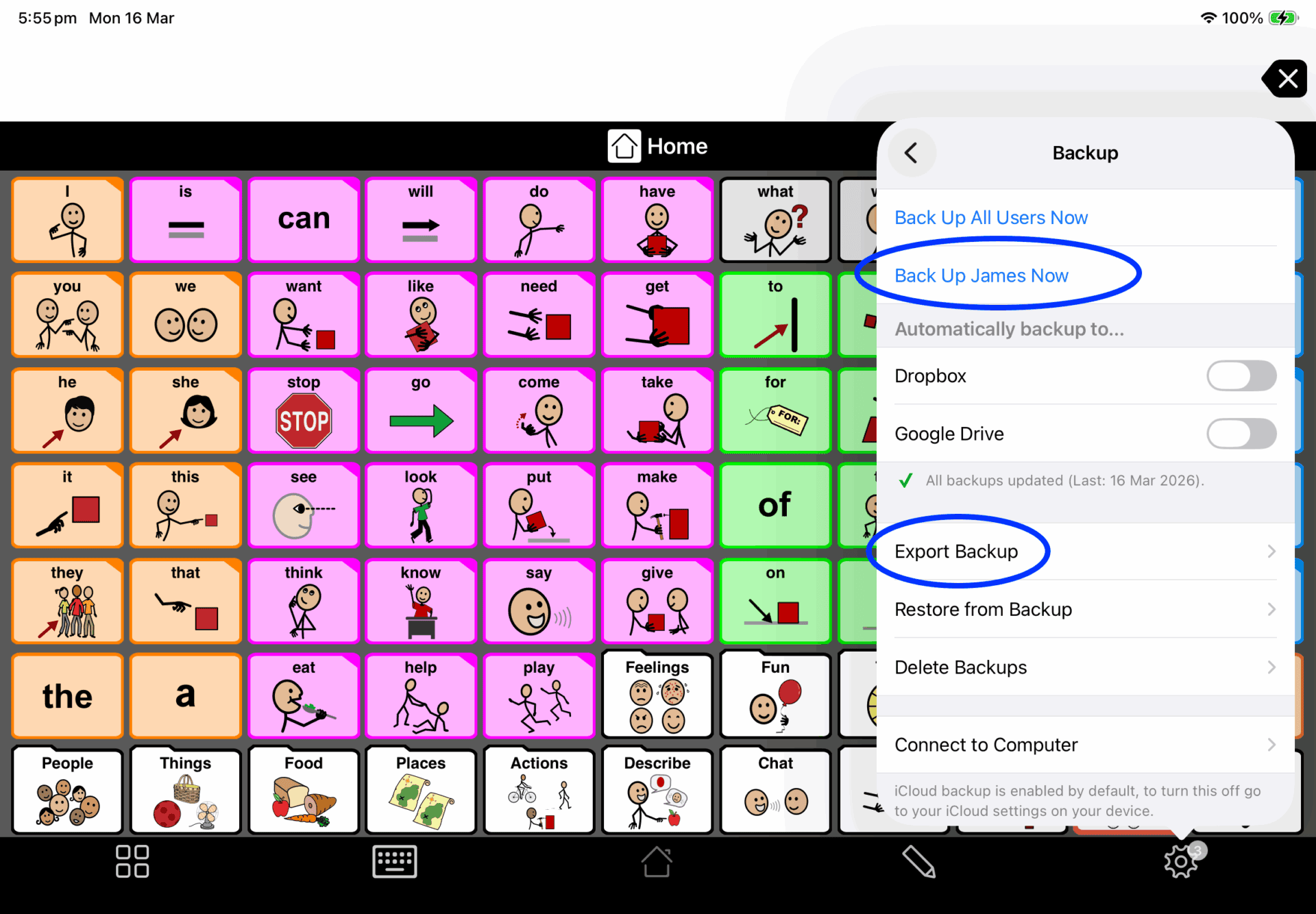
  • Tap Settings
  • Select Backup
  • Tap Back Up Username Now
  • Tap Export Back Up
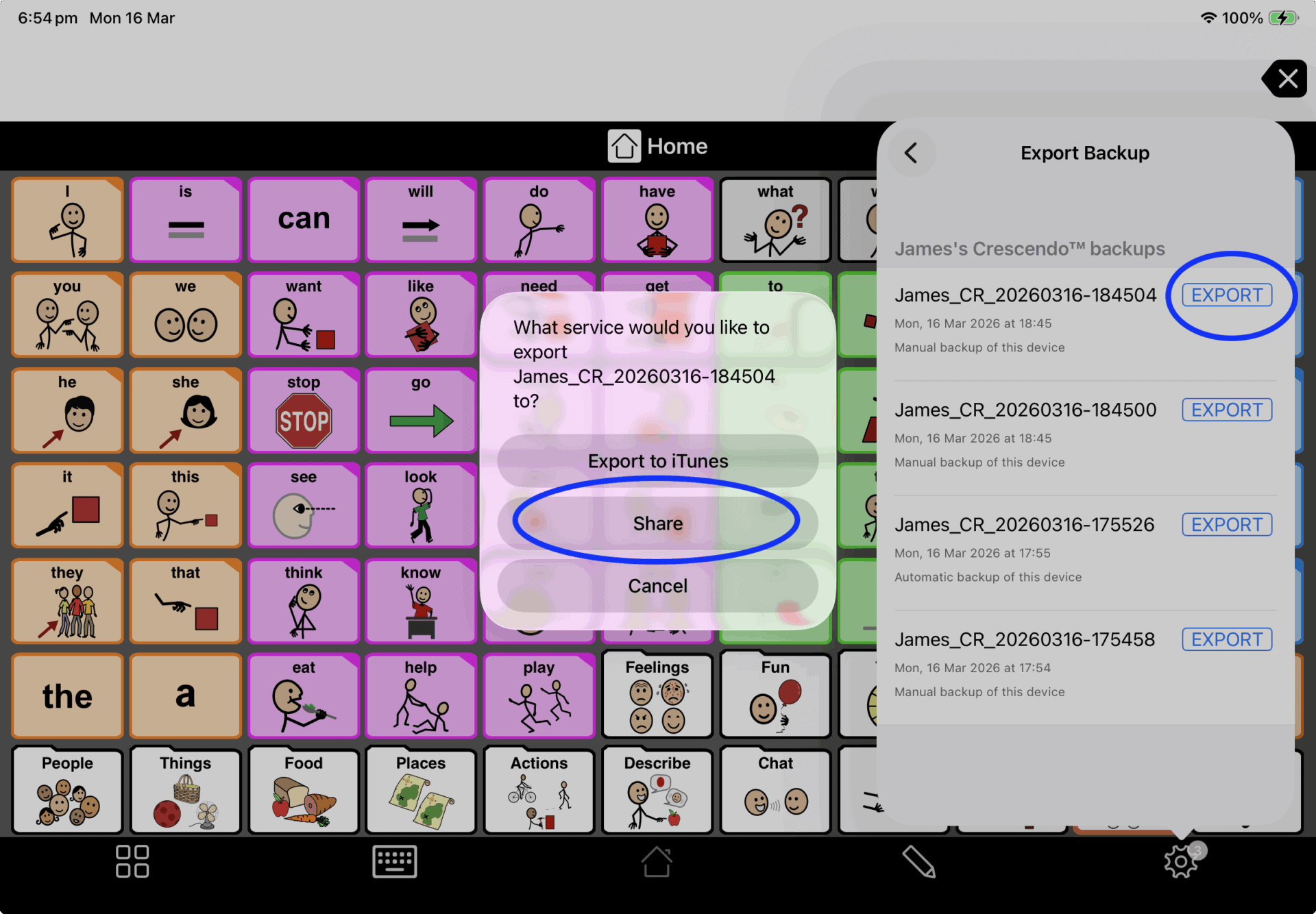
  • Select the most recent backup and tap Export
  • Tap Share → AirDrop
  • Select the receiving device
Screenshot of the backup menu within the Proloquo2go app
  • Tap on 'Export' next to the latest backup (most recent is at the top) or the backup that you want to transfer
  • Tap on 'Share'
Screenshot of the Export Backup menu within the Proloquo2go app

Import

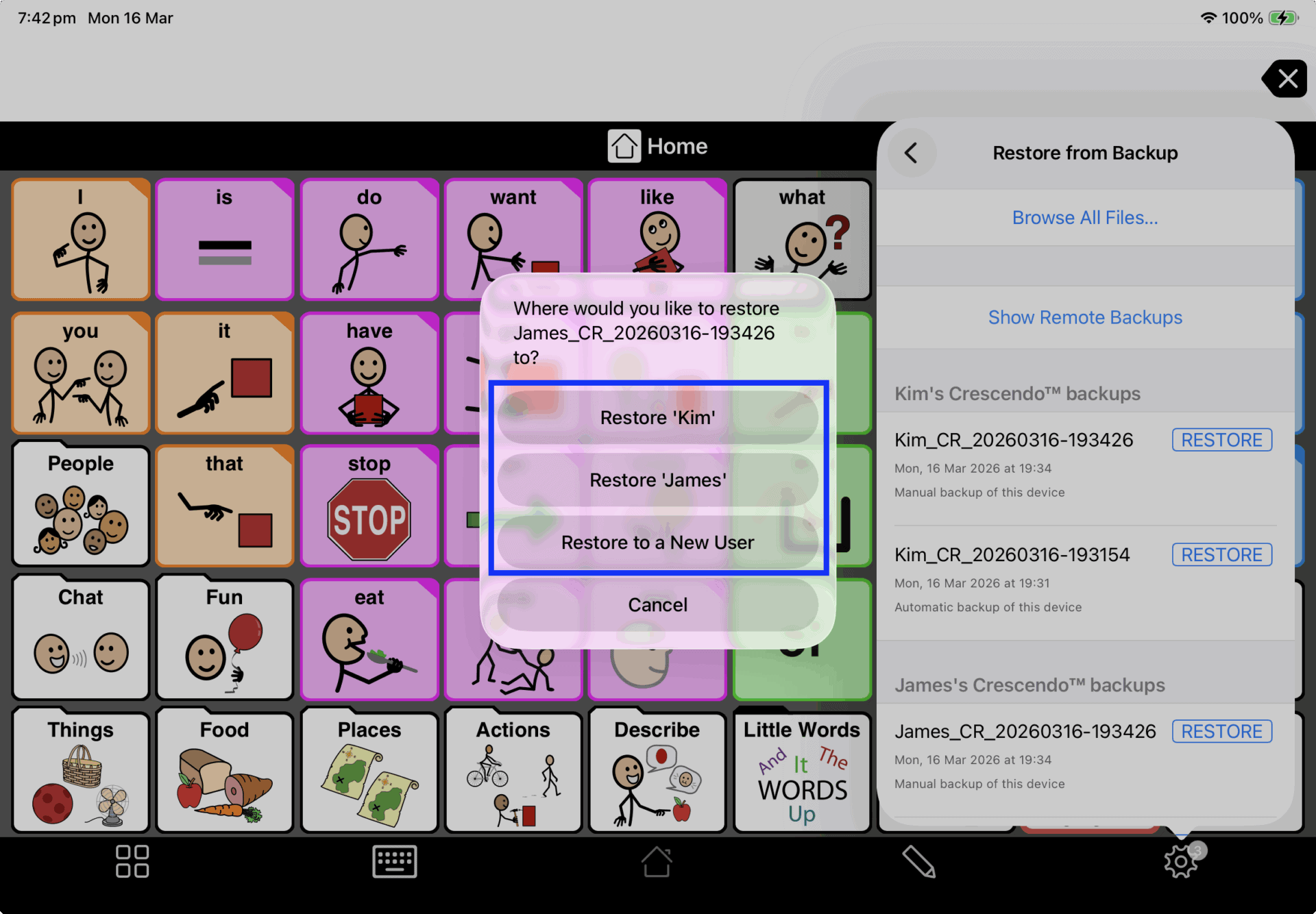
  • Go to Settings → Backup
  • Tap Restore from Backup
  • Select Browse All Files
  • Locate the file (.p2gbk)
  • Tap to import Choose an existing or new user profile
  • You can also open the file directly from the Files app
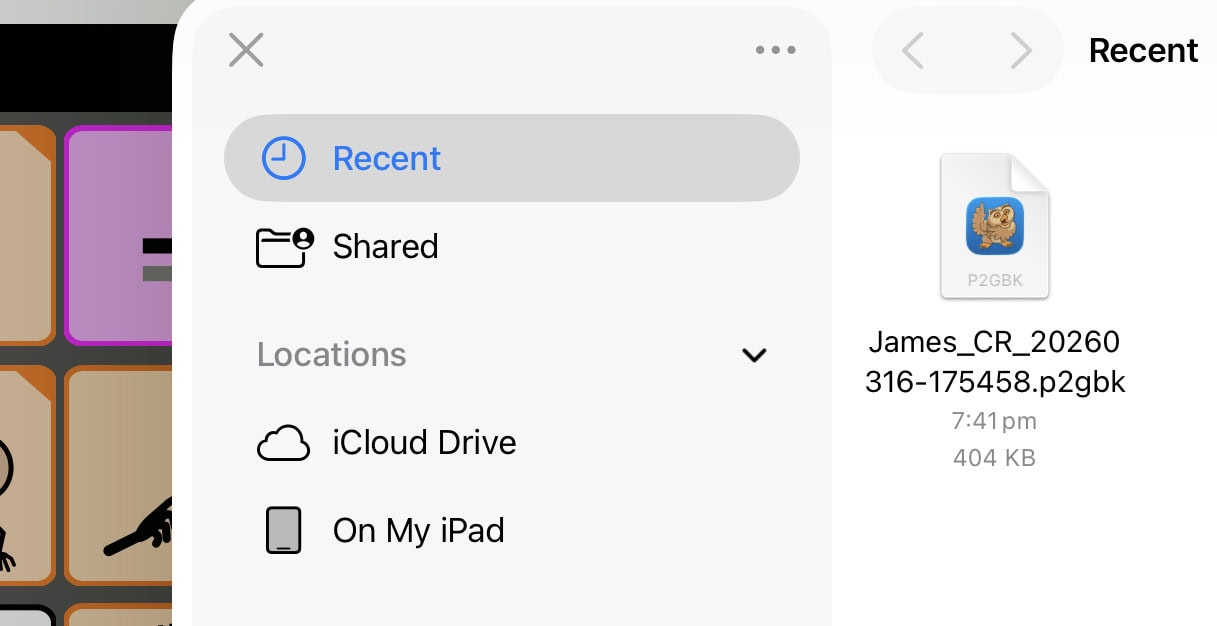
Screenshot of the 'Browse all files' screen within the Proloquo2go app.

AirDrop from Proloquo

Export and AirDrop

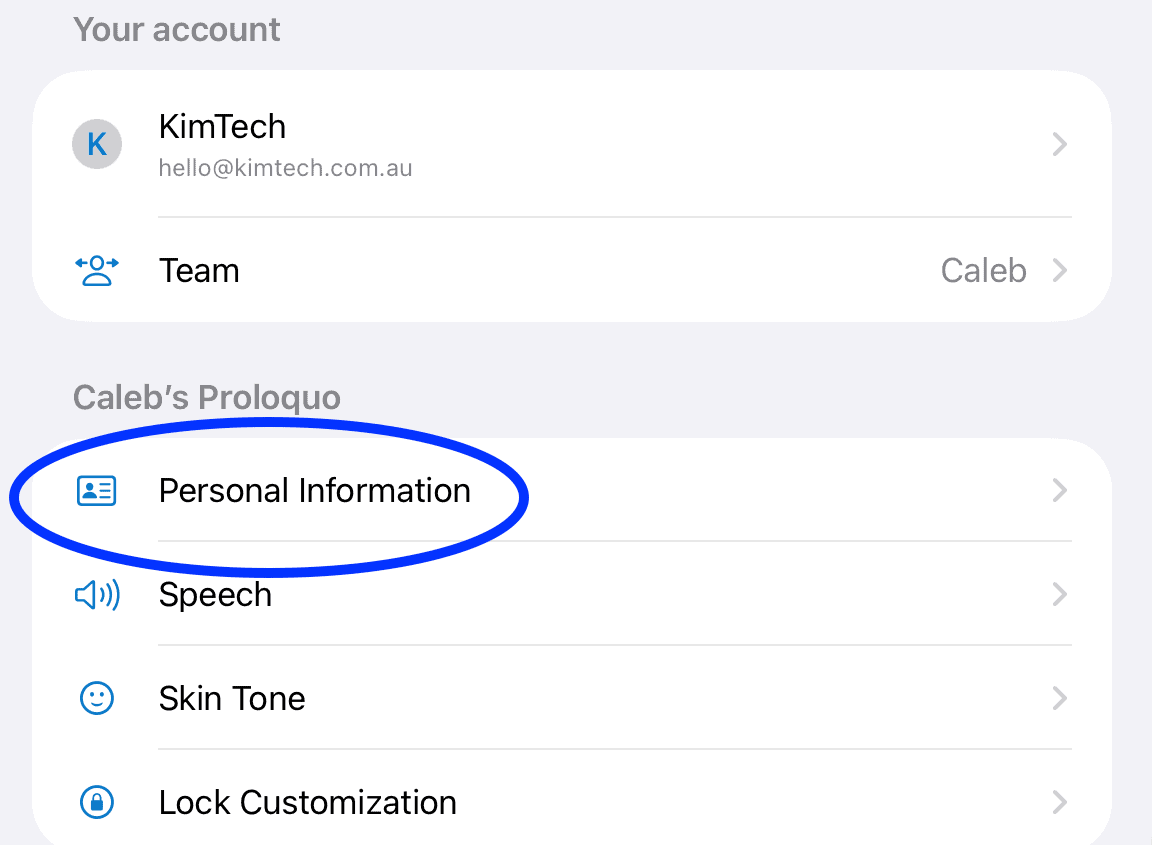
  • Tap the ellipsis (three dots)
  • Select Settings
  • Tap Personal Information
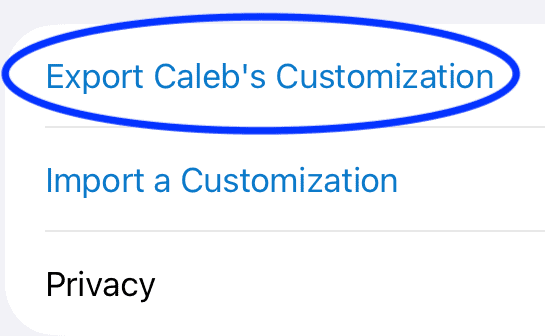
  • Tap Export Customisation
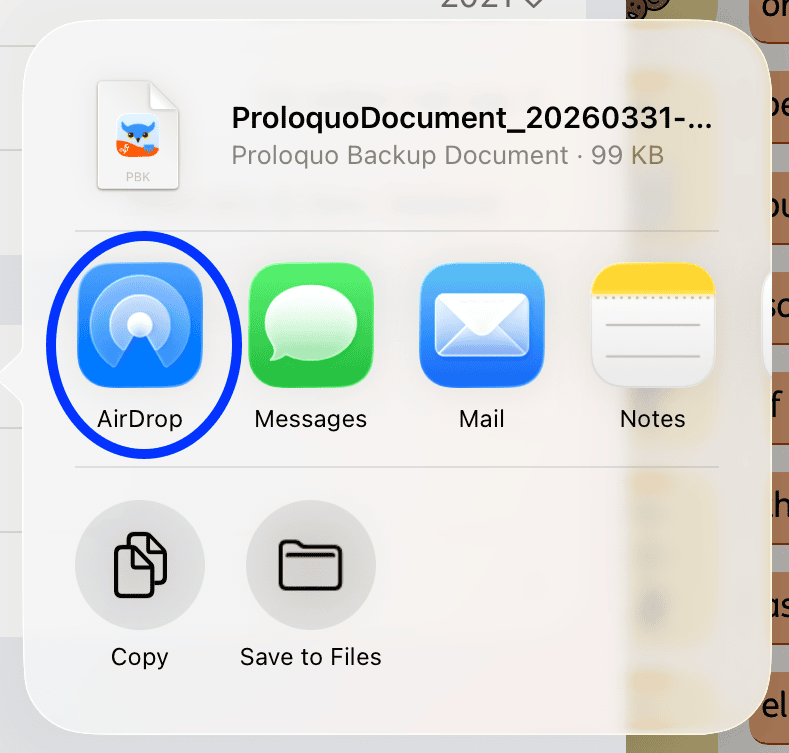
  • Tap AirDrop
  • Select the receiving device
Screenshot of Proloquo settings with “Personal Information” highlighted under a user profile.
Screenshot of Proloquo menu with “Export Caleb’s Customization” highlighted above “Import a Customization.”
Screenshot of AirDrop AAC pagesets with AirDrop icon highlighted for sending a Proloquo backup file.

Import

  • Locate the file in the Files app
  • Tap Share
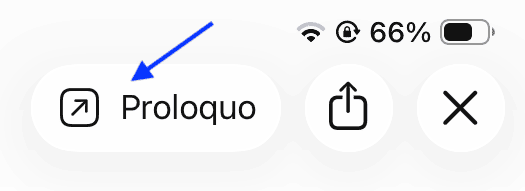
  • Select Proloquo
  • Proloquo will open with a message that the current customisation will be replaced
  • Tap Continue
Screenshot of iPad share interface with “Proloquo” option highlighted, indicating how to open a backup file in the Proloquo app.
Screenshot of Proloquo popup asking “Import a customization?” with warning message and the “Continue” button highlighted.

AirDrop from TD Snap

TD Snap cannot AirDrop directly from within the app. Instead, the page set must first be saved to the device.

Export

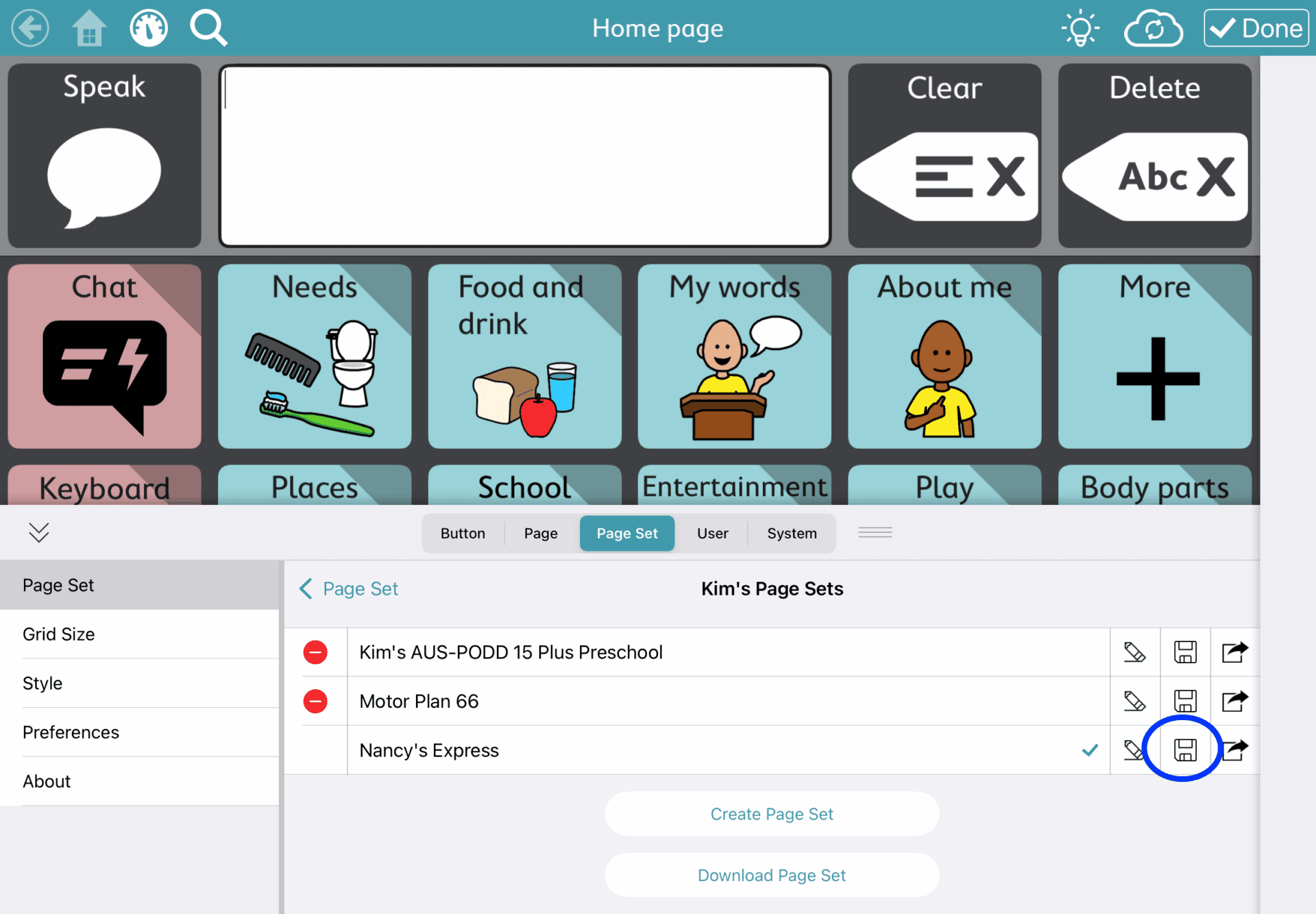
  • Go to Settings → Page Set
  • Tap the page set name
  • Tap the Save icon
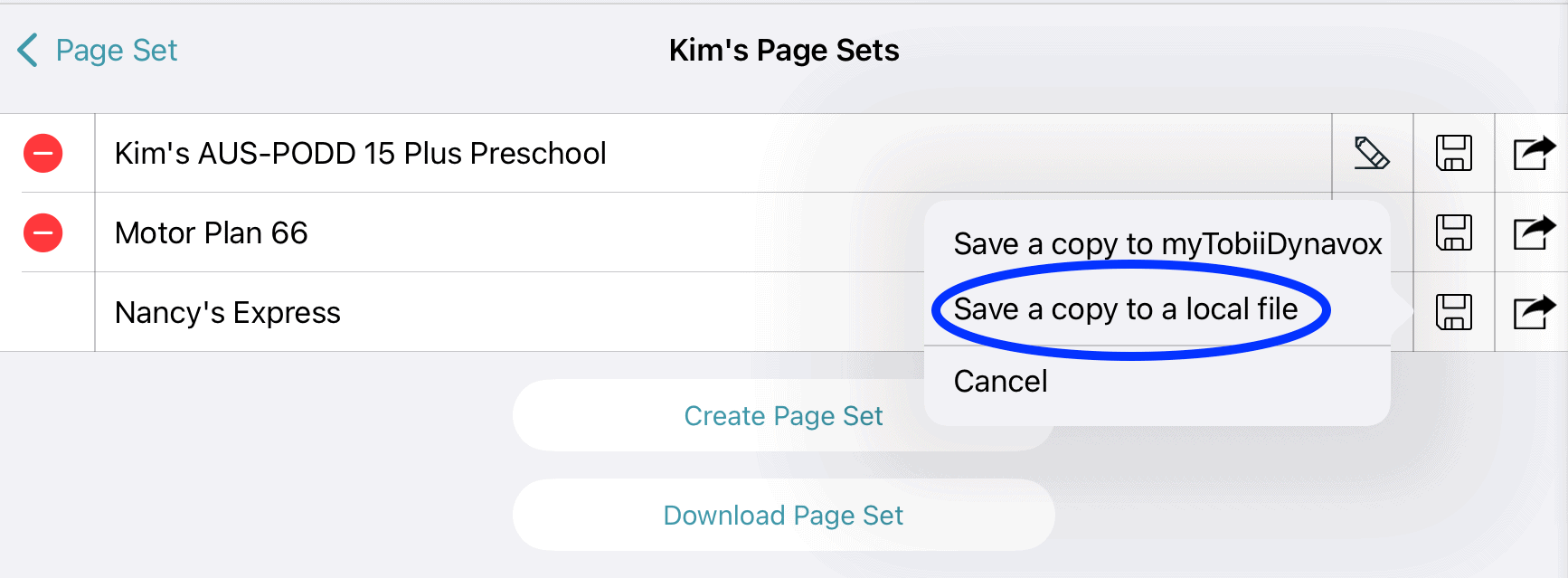
  • Select Save a copy to a local file
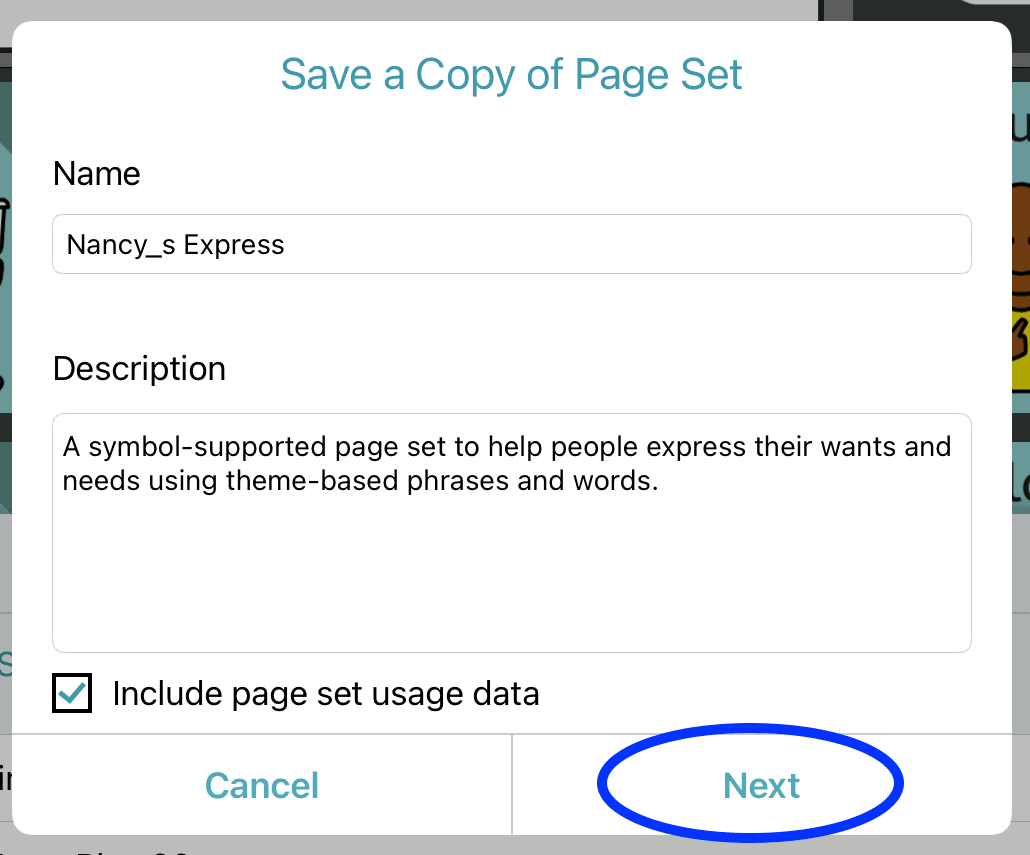
  • Rename the file Tap Next → Done
Screenshot of AAC app home page with grid of communication buttons and page set list below showing “Nancy’s Express” among available page sets with the Save icon circled.
Screenshot of export menu with options including “Save a copy to myTobiiDynavox” and “Save a copy to a local file,” with the local file option highlighted.
Screenshot of “Save a Copy of Page Set” screen with name and description fields filled and the “Next” button highlighted.
Screenshot showing message “Successfully saved Nancy_s Express” with the “Done” button highlighted.

AirDrop

  • Open the Files app
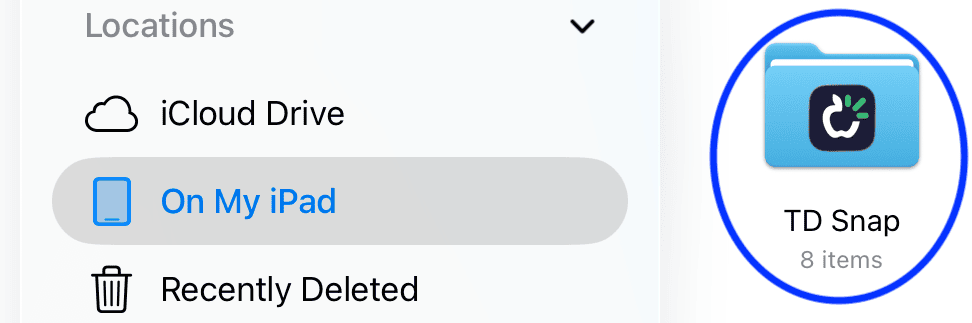
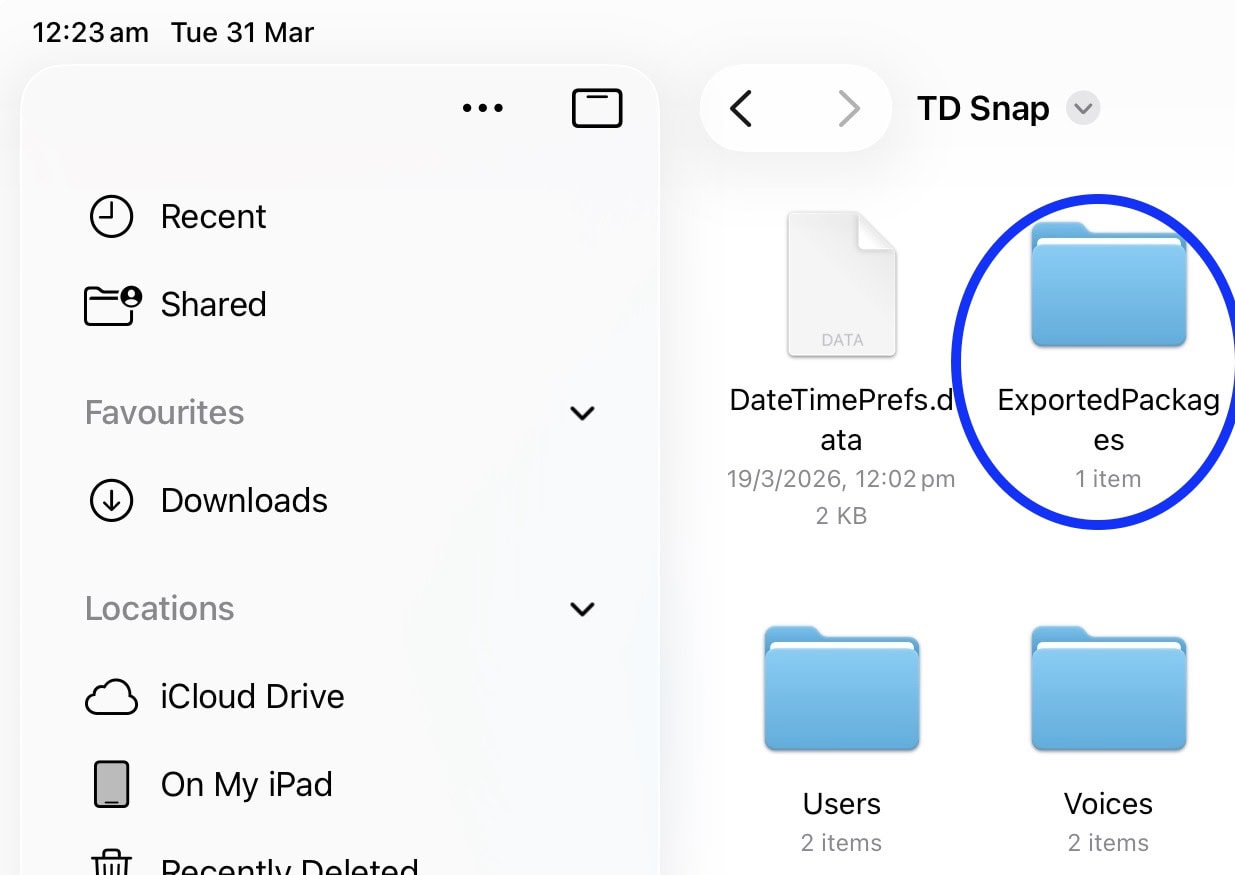
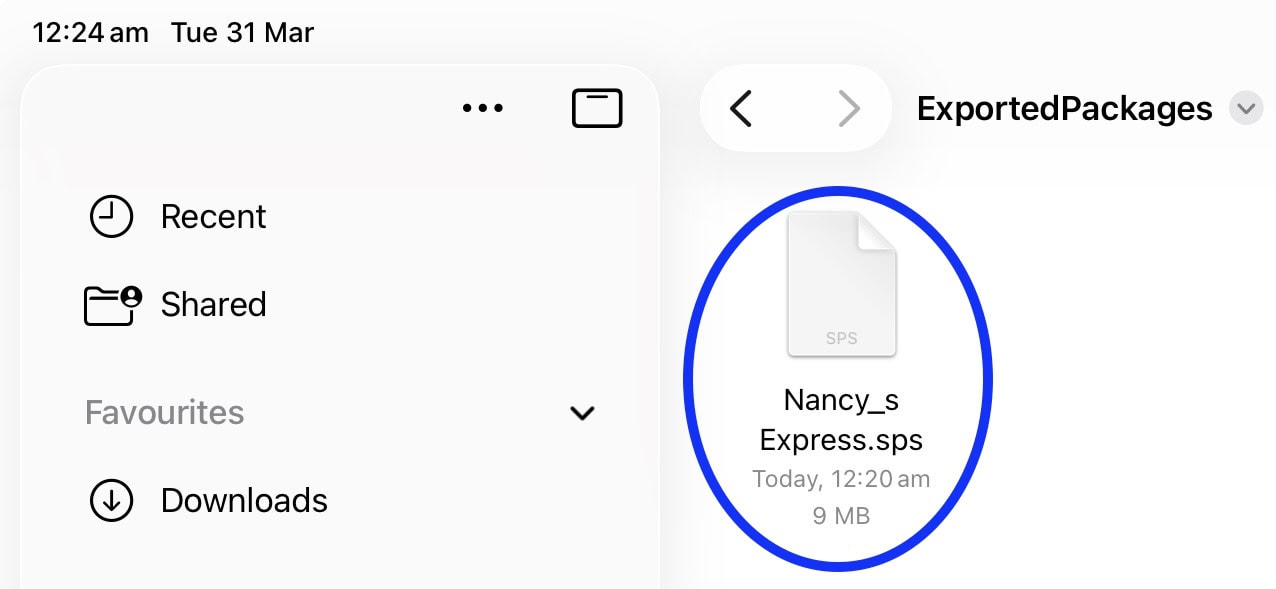
  • Navigate to: On My iPad → TD Snap → ExportedPackages
  • Locate the .sps file
  • Tap Share → AirDrop
  • Select the receiving device
Screenshot of file browser with “On My iPad” selected and a folder named “TD Snap” highlighted.
TD Snap
Screenshot of file browser within TD Snap showing a folder named “ExportedPackages” highlighted.
Screenshot
Screenshot of file browser showing file “Nancy_s Express.sps” with file size and timestamp highlighted.
Screenshot

Import

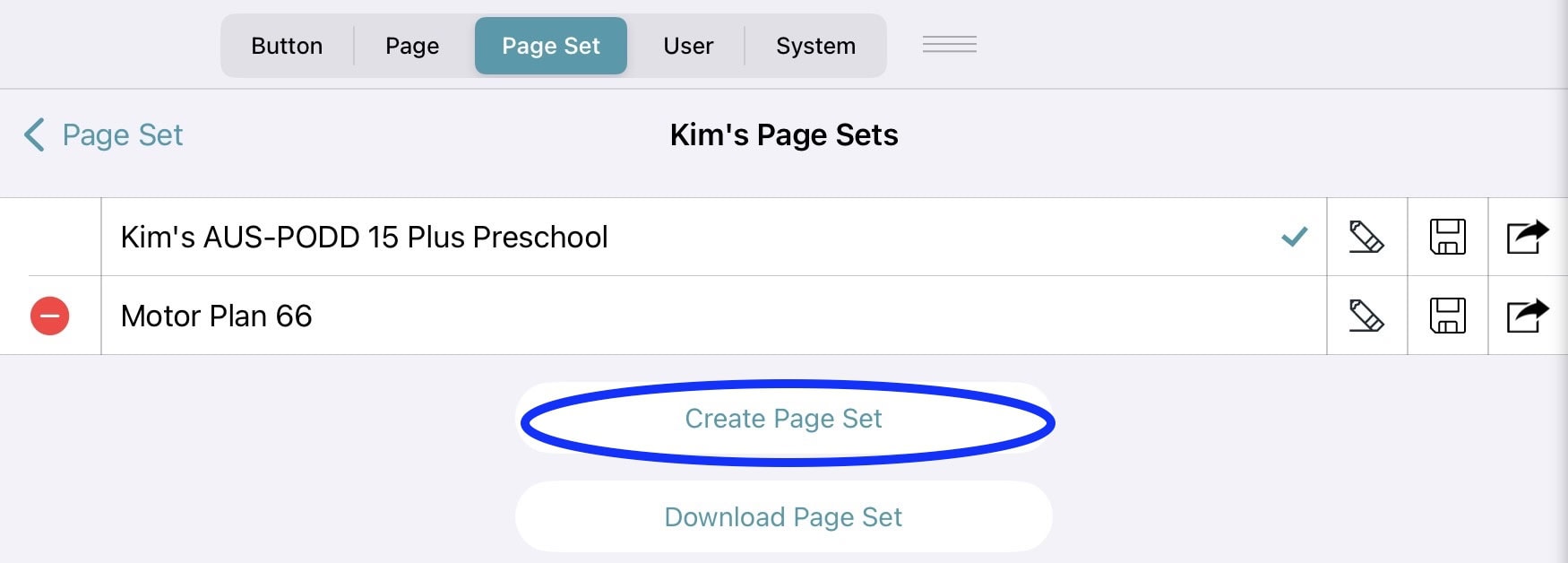
  • Go to Settings → Page Set
  • Tap Create Page Set
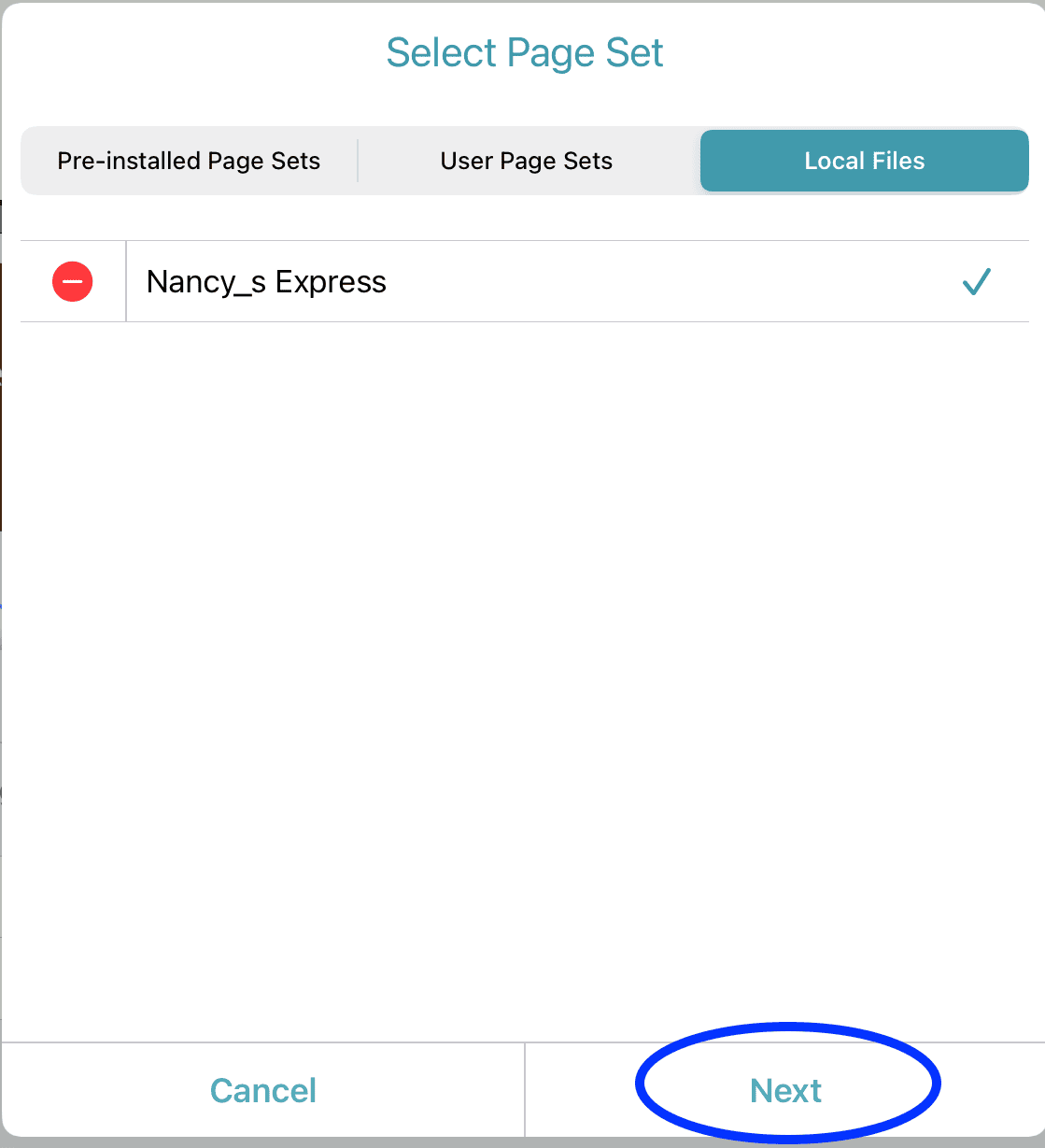
  • Select Local Files
  • Choose the transferred file
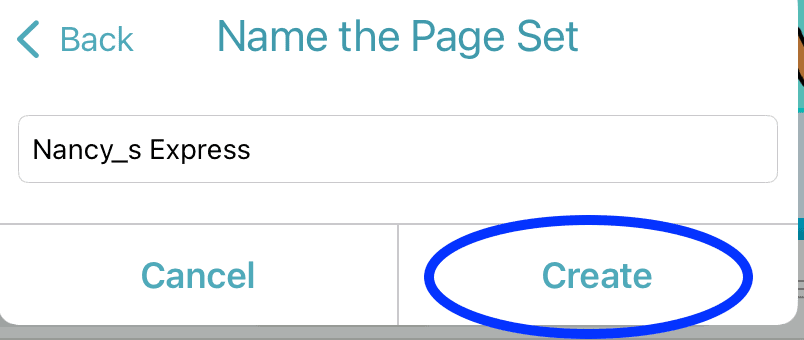
  • Tap Next → Create
Screenshot of “Kim’s Page Sets” screen in an AAC app, with existing page sets listed and the “Create Page Set” button highlighted.
Screenshot
Screenshot of “Select Page Set” screen with “Nancy_s Express” selected and the “Next” button highlighted.
Screenshot of “Name the Page Set” screen with text field “Nancy_s Express” and the “Create” button highlighted.

You will now see the page set in the list of pagesets for that user.
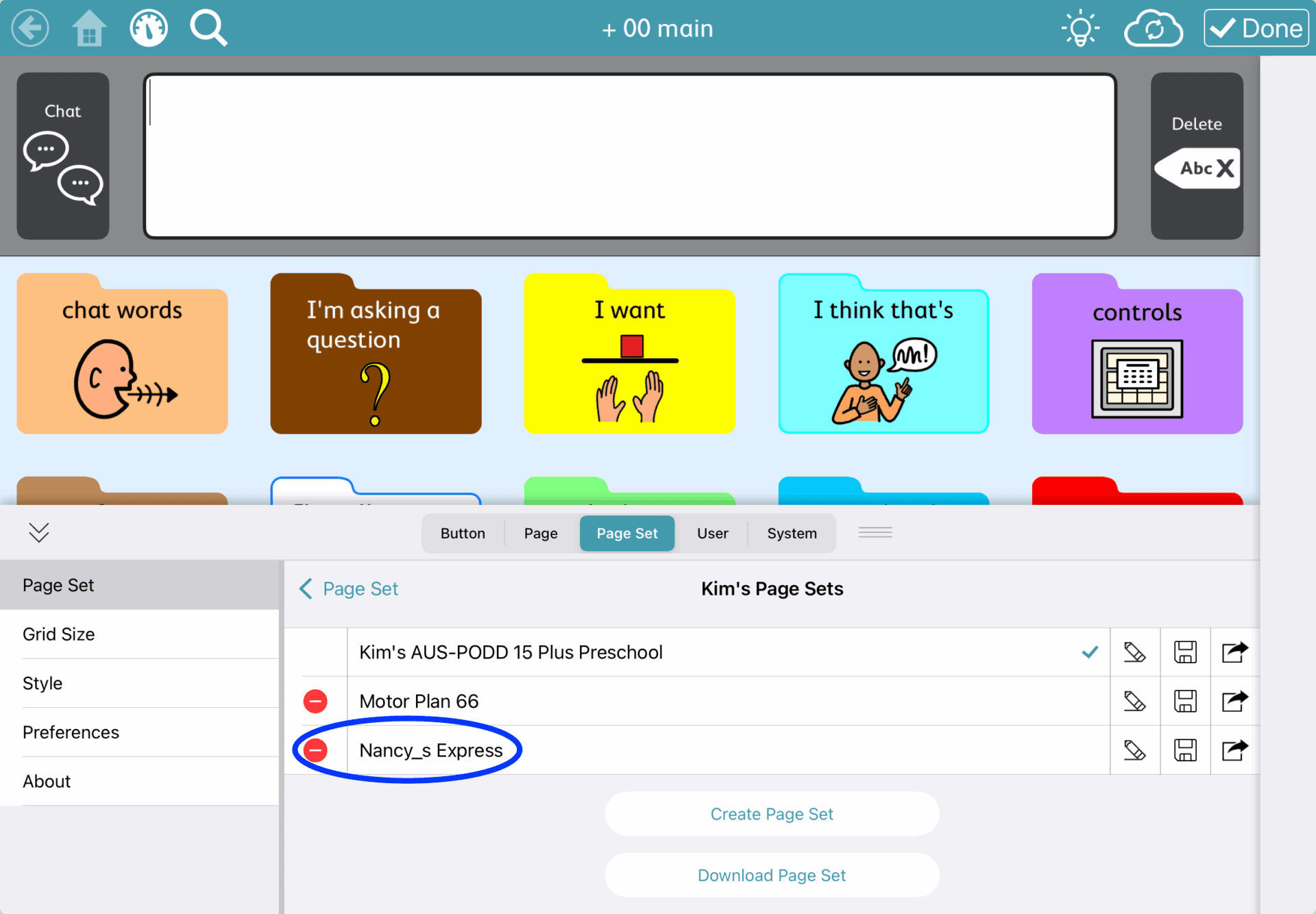
Screenshot of an AAC app showing the home communication grid at the top and the “Kim’s Page Sets” list below, with “Nancy_s Express” circled to indicate the selected page set.

AirDrop from Grid for iPad

Export and AirDrop

  • Open grid set
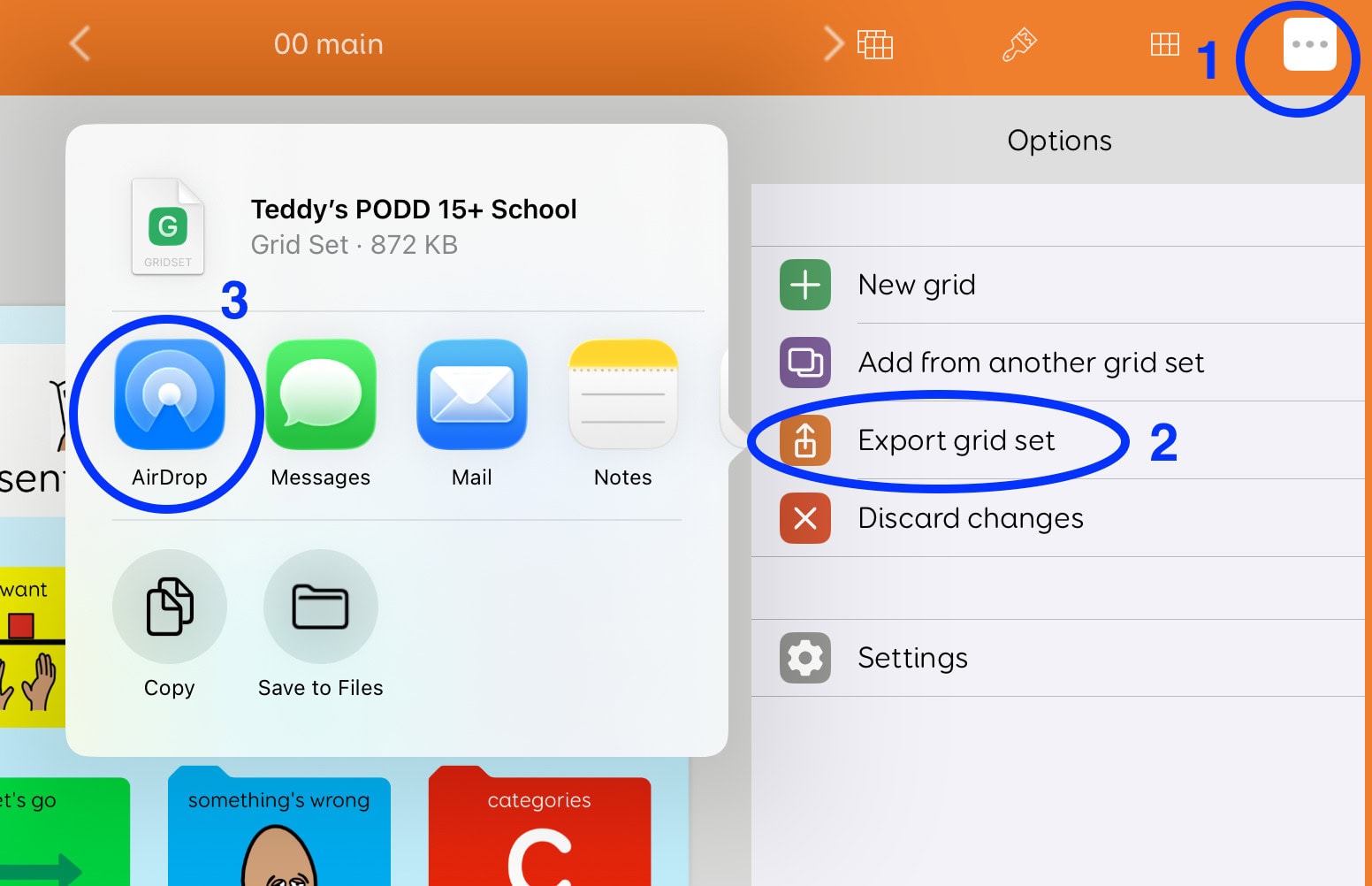
  • Go to Settings → Edit Grids → Export grid set
  • Tap AirDrop
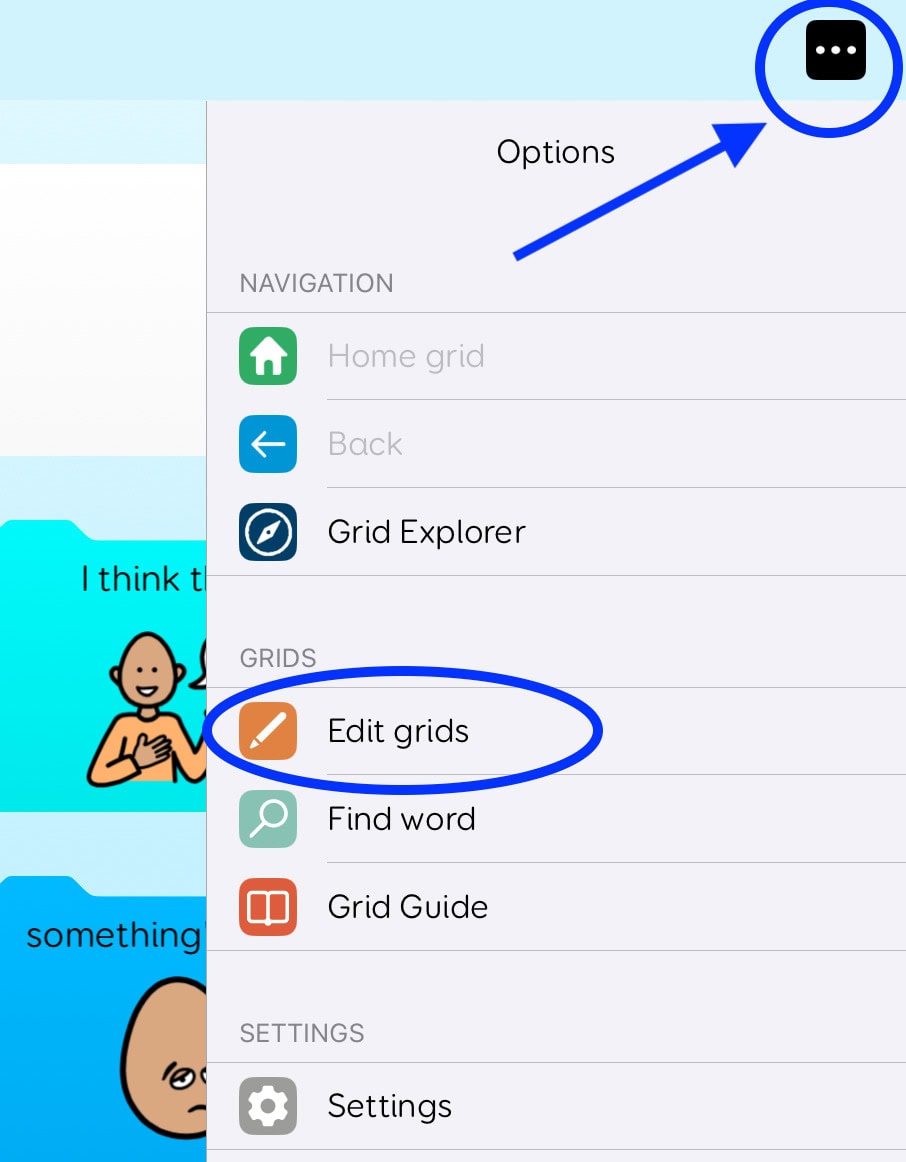
Screenshot of Grid for iPad showing the Options menu with a blue arrow pointing to the three-dot menu icon and “Edit grids” highlighted, indicating where to access grid editing settings.
Screenshot of Grid for iPad showing the steps to export a grid set: the three-dot options menu is selected, “Export grid set” is highlighted, and the share screen displays AirDrop as the selected transfer option.

Import

  1. Open Grid Explorer
  2. Tap ellipsis → Settings → Add grid set
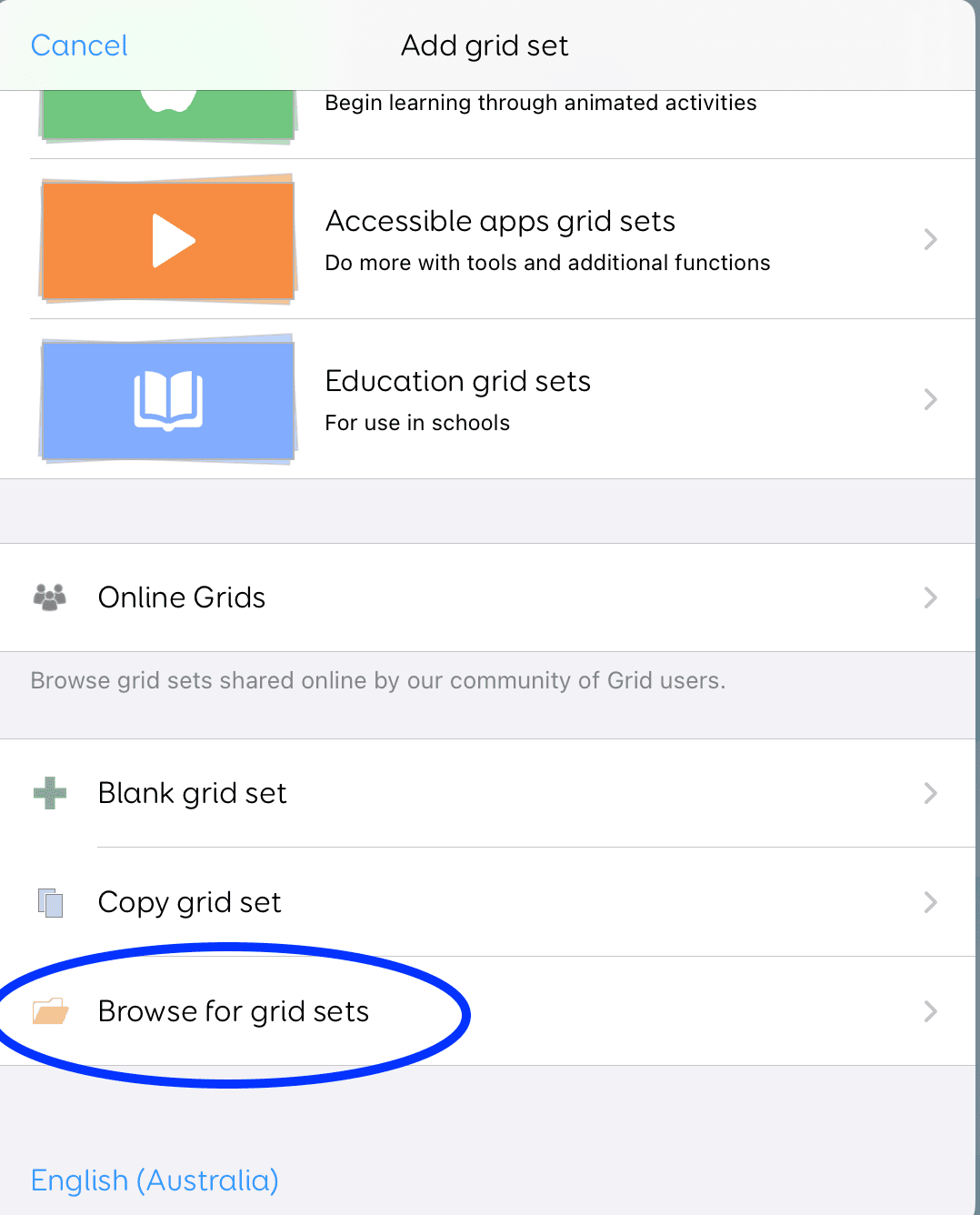
  3. Select Browse for grid sets
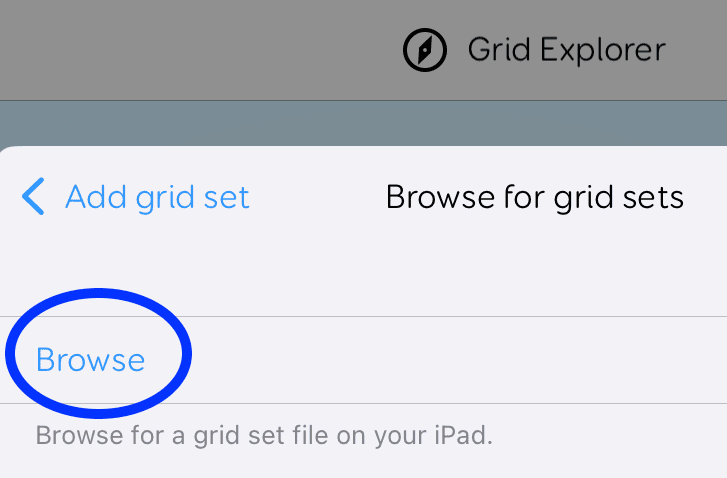
  4. Tap Browse
  5. Locate the .gridsetx file
  6. Tap to import

Note: There is the option to open the gridset directly from the Files app however in my experience this fails to upload the gridset to the Grid app. Uploading directly within the Grid for iPad app is more reliable.
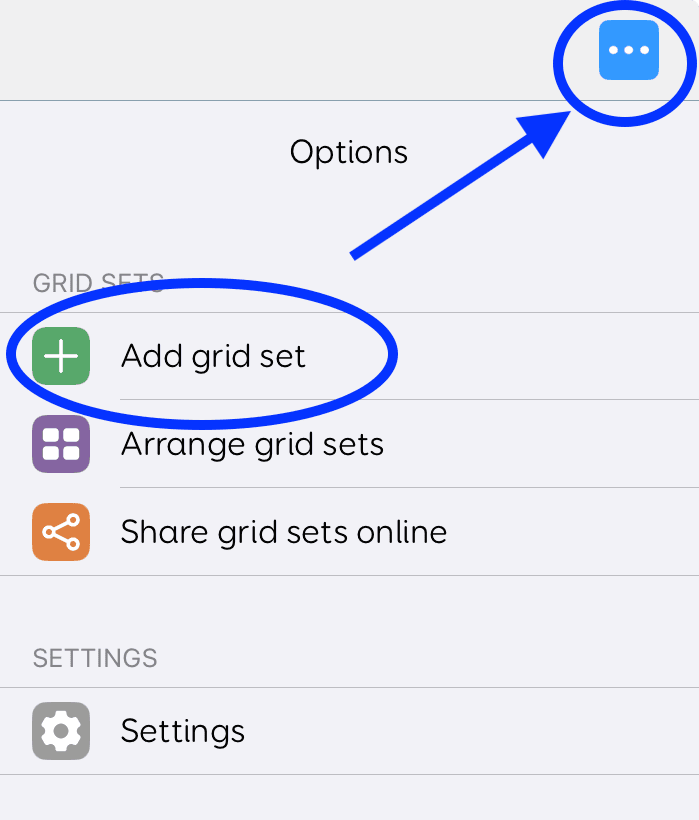
Screenshot of Grid for iPad Options screen with a blue arrow pointing to the three-dot menu icon and “Add grid set” highlighted, indicating where to add a new grid set.
  • Navigate to Browse for grid sets
  • Then tap on Browse
Screenshot of Grid for iPad showing the Add grid set menu with options such as Accessible apps grid sets, Education grid sets, Online Grids, Blank grid set, and Copy grid set, with “Browse for grid sets” highlighted at the bottom.
Screenshot of Grid for iPad showing the Browse for grid sets screen with the “Browse” option highlighted, used to find and import a grid set file from the iPad.

Tap the folder name and then the file that you want to import. It will end in .gridsetx
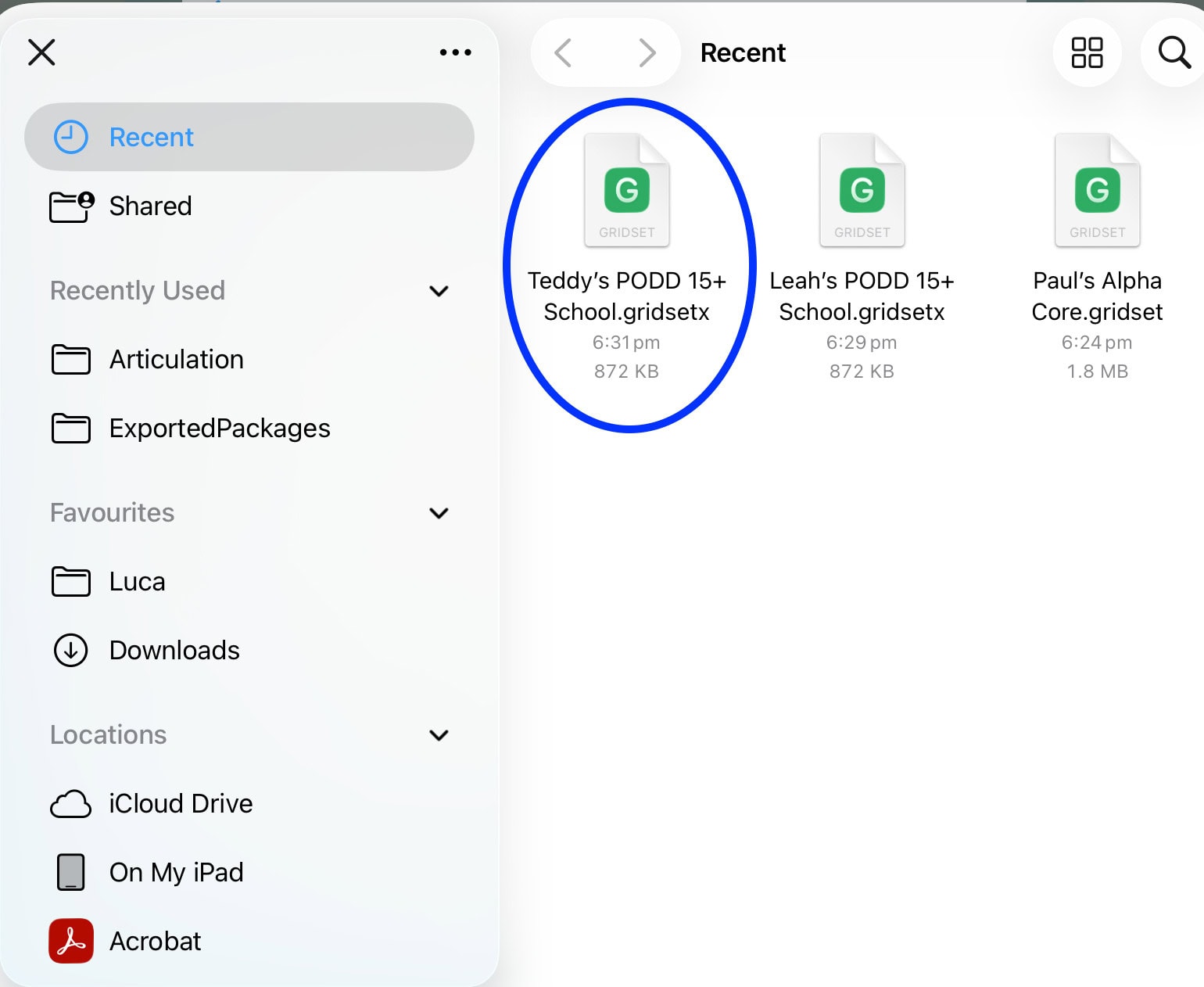
Screenshot of the Files app on an iPad showing the Recent folder with a Grid for iPad page set file (.gridsetx) highlighted, including folders such as Downloads and ExportedPackages visible in the sidebar.

The grid set will now appear in Grid Explorer.

AirDrop from TouchChat with WordPower & LAMP Words for Life

These steps apply to both WordPower and LAMP Words for Life, as both run on the PRC-Saltillo platform and use the same export and sharing process.

Export and AirDrop

  1. Tap Vocab → Choose New Vocab
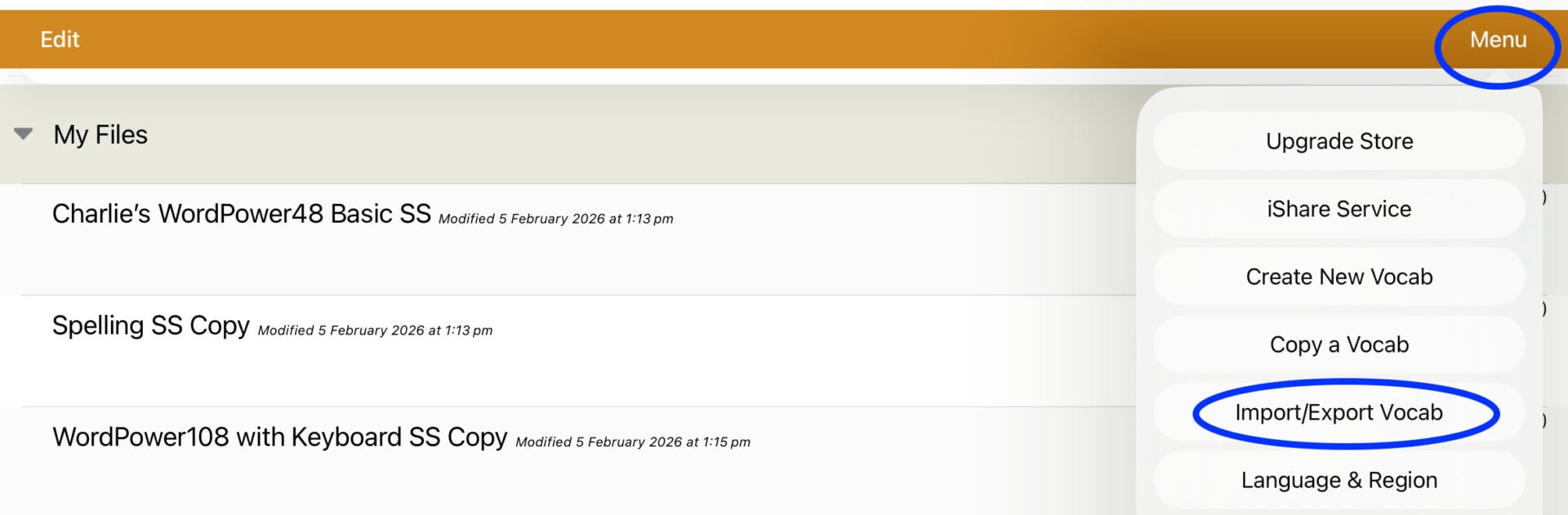
  2. Tap Menu → Import/Export Vocab
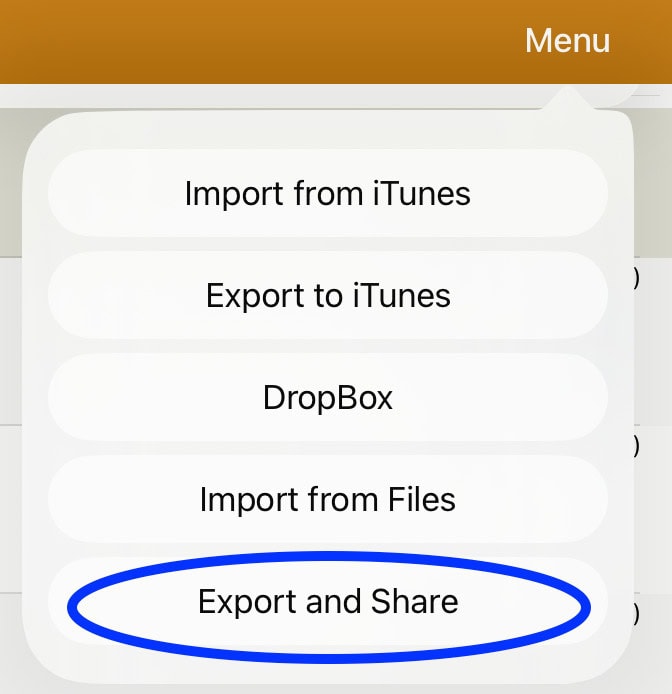
  3. Tap Export and Share
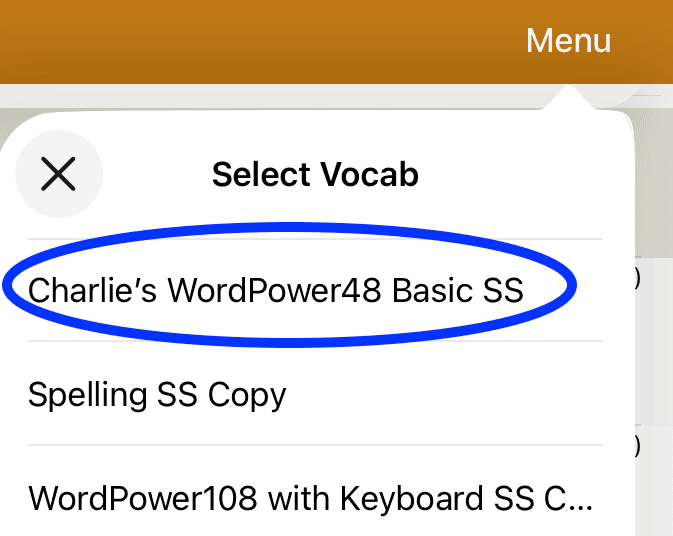
  4. Select the vocabulary
  5. Rename if needed
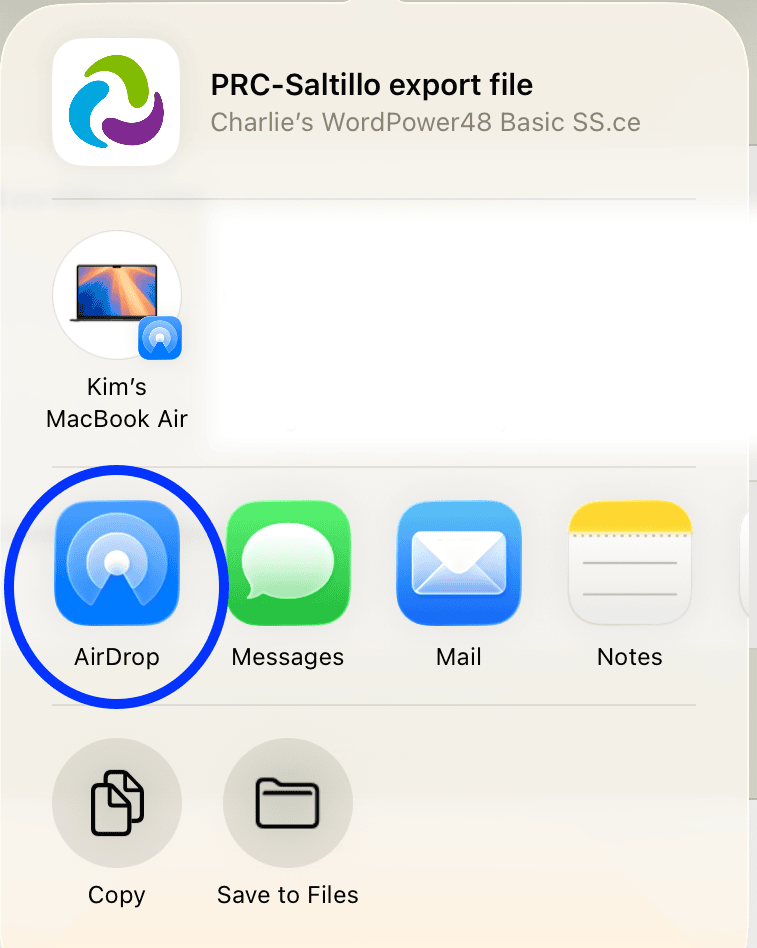
  6. Tap AirDrop
Screenshot of TouchChat with “Choose New Vocab” highlighted, indicating selection of a vocabulary file.
Screenshot of TouchChat with the Menu open in the top right corner and “Import/Export Vocab” highlighted, used to access options for importing and exporting vocabulary files.
Screenshot of TouchChat menu with options including Import from iTunes, Export to iTunes, and Dropbox, with “Export and Share” highlighted.
Export and Share
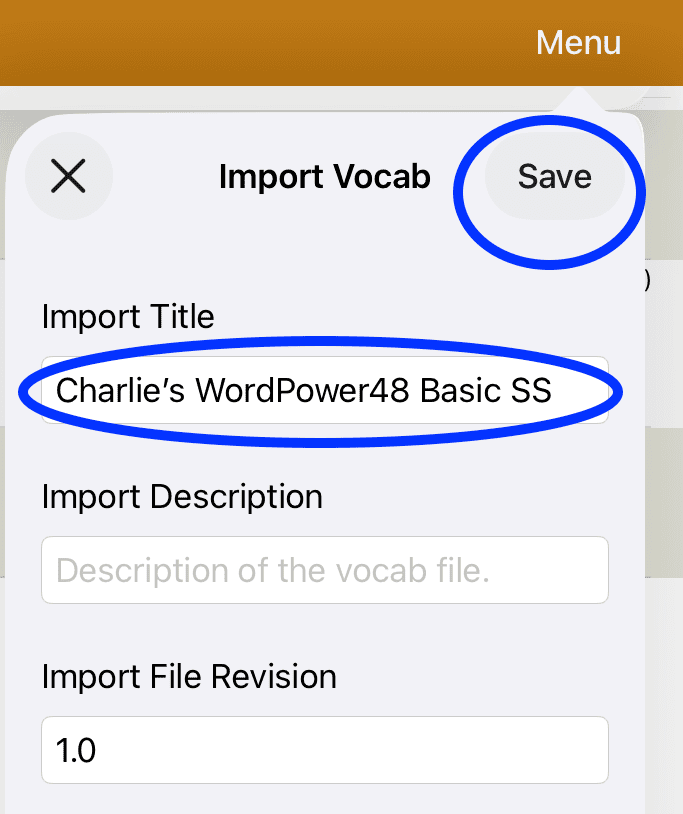
Screenshot of TouchChat Select Vocab screen with “Charlie’s WordPower48 Basic SS” highlighted from a list of vocabularies.
Select the vocab you wish to export
You can rename the vocab file
Screenshot of iPad share screen displaying a PRC-Saltillo export file with AirDrop highlighted as the selected sharing option.

Import

You can go through the same process to import however the quicker way to import is to find the file on the other iPad and open it.

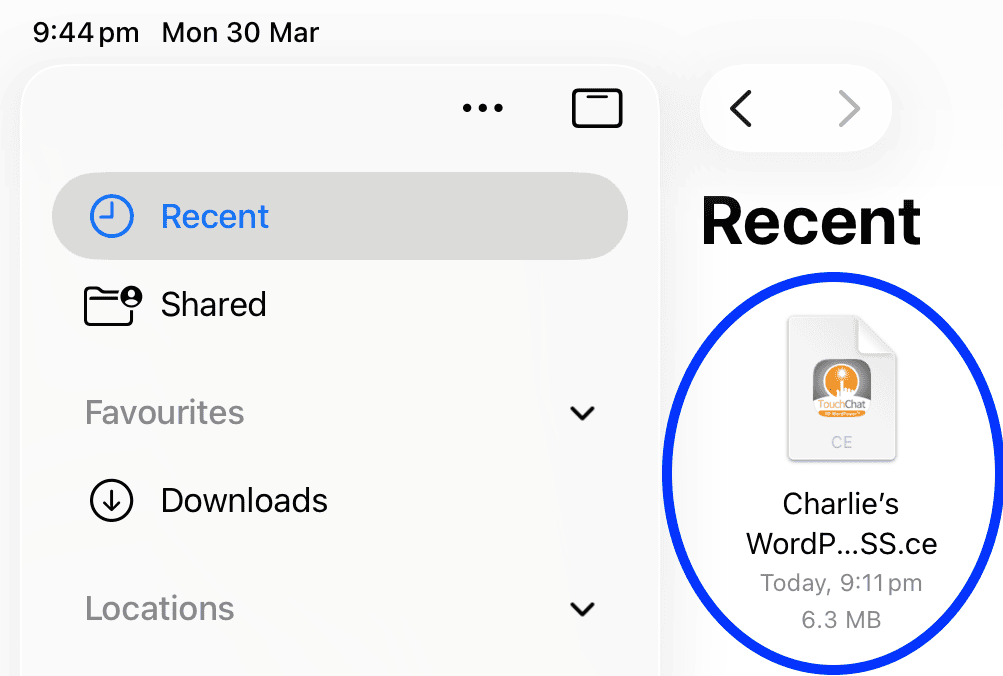
  1. Locate the file in Files app
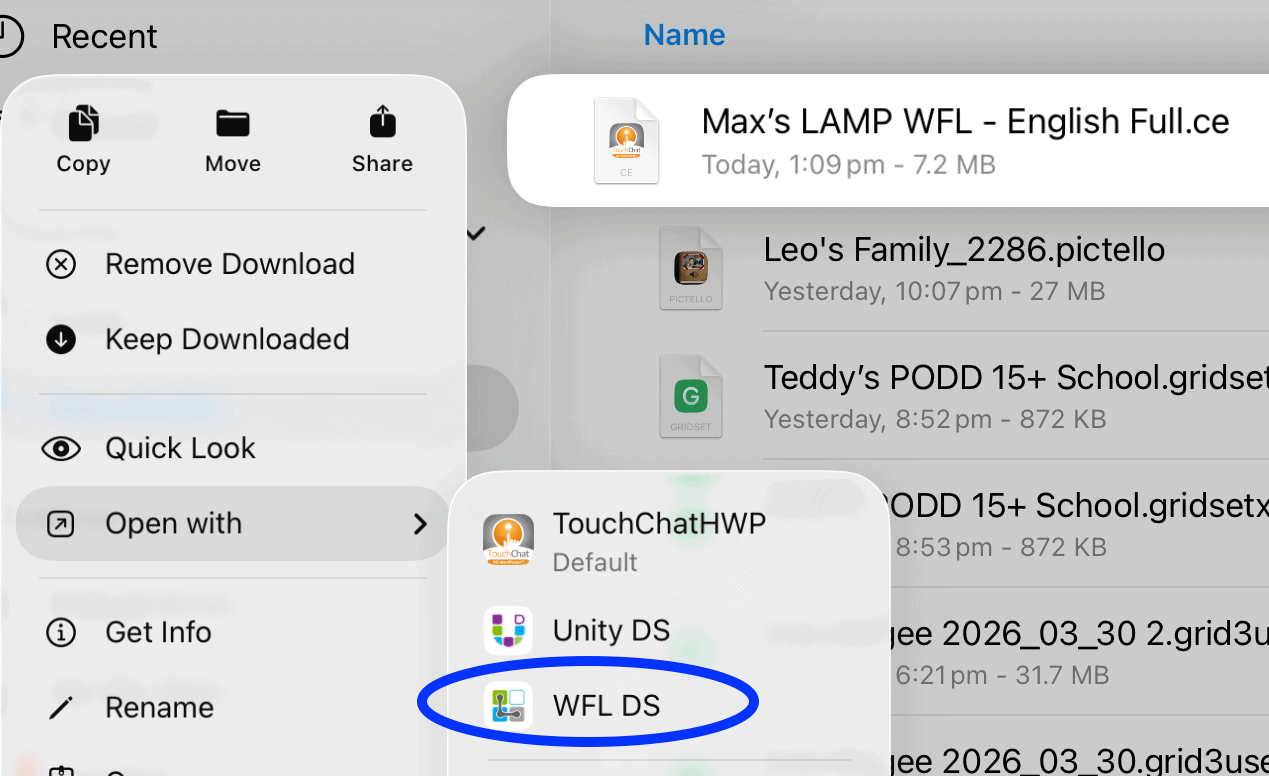
  2. Hold down the file so the secondary menu pops up
  3. Tap Open with and tap TouchChatWP for TouchChat or WFL DS for LAMP
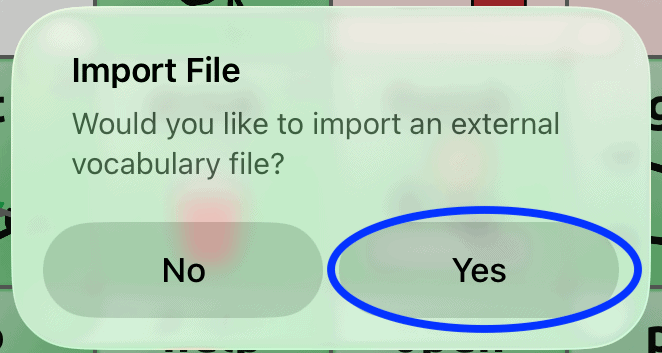
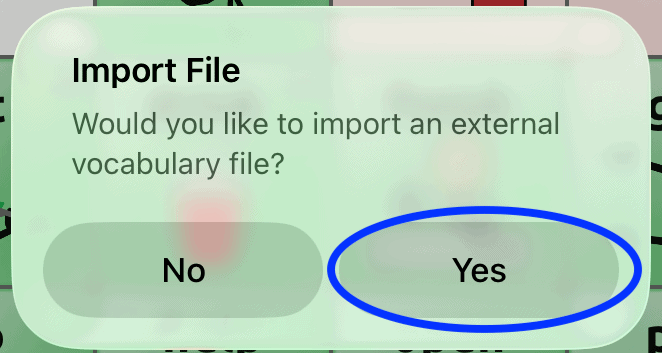
  4. Tap Yes to import
  5. Rename if needed
  6. Tap Save
Screenshot of the Files app on an iPad showing the Recent folder with a TouchChat vocabulary file (.ce) highlighted, ready to be opened or imported.
Screenshot of iPad Files app with a TouchChat backup file selected, showing the “Open with” menu with options including TouchChatWP and WFL DS, with WFL DS highlighted.
Popup screen in TouchChat asking “Would you like to import an external vocabulary file?” with the Yes button highlighted.
Screenshot of the Files app on an iPad showing the Recent folder with a TouchChat vocabulary file (.ce) highlighted, ready to be opened or imported.

AirDrop from GoTalk Now

Export and AirDrop

  1. Tap the book name (edit mode)
  2. Tap Share icon
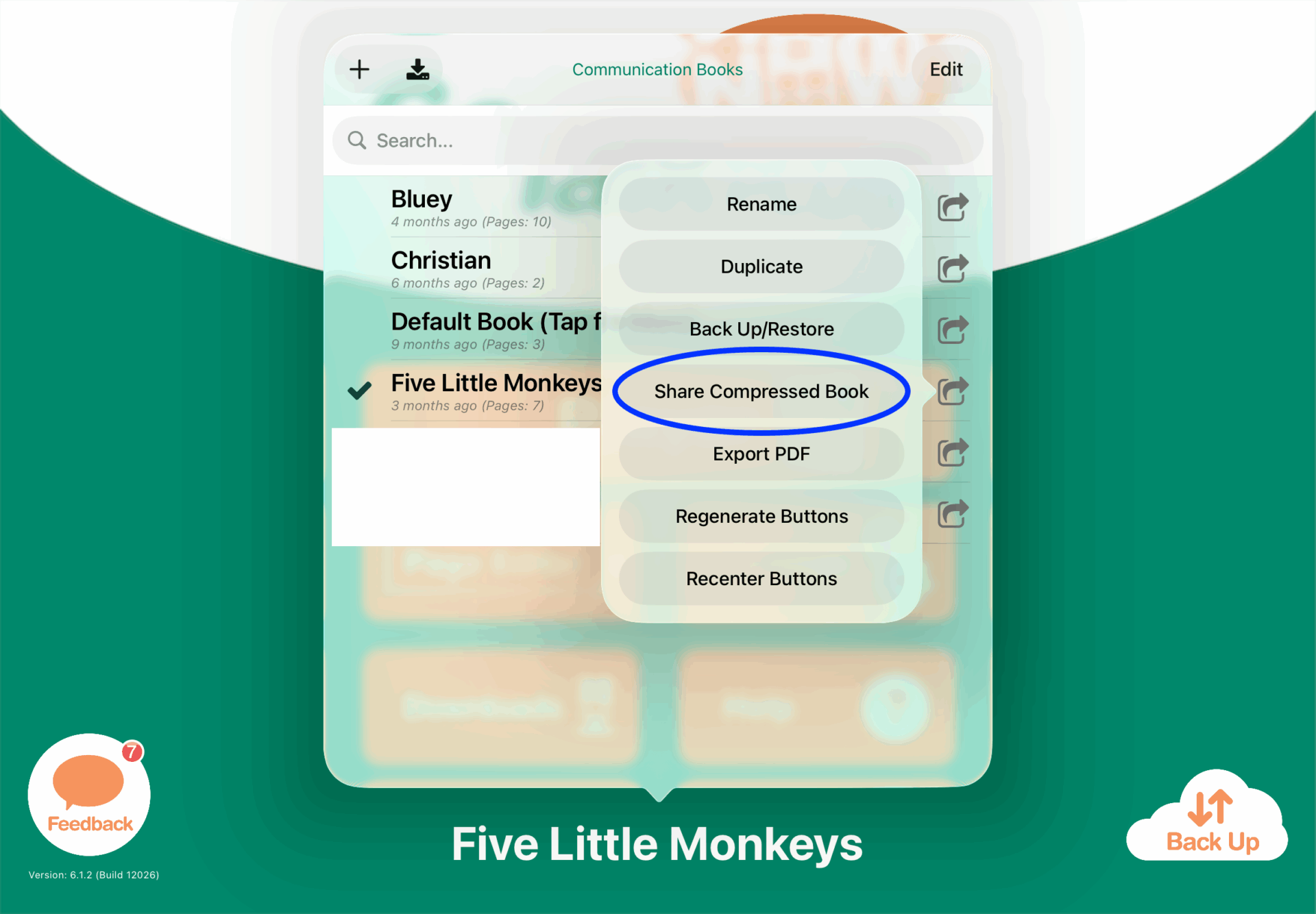
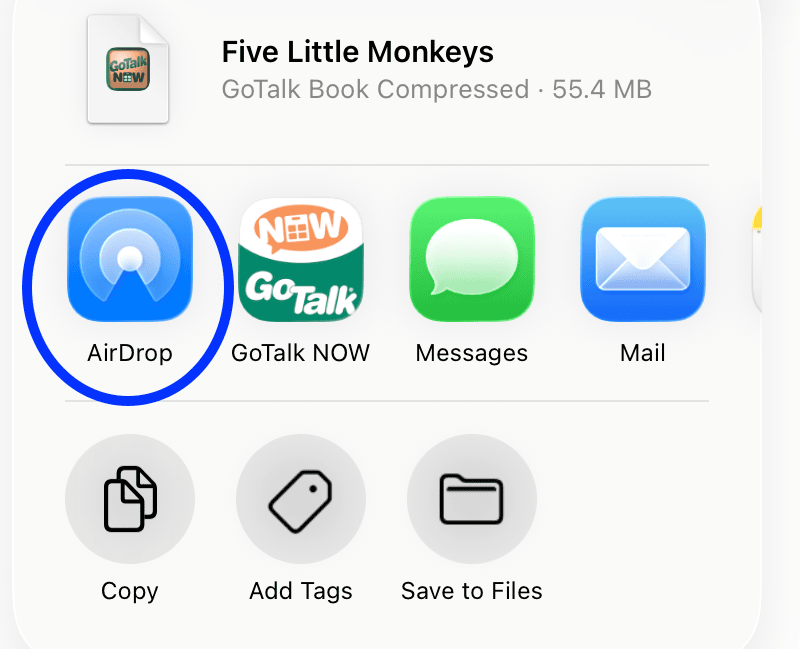
  3. Select Share Compressed Book Tap AirDrop
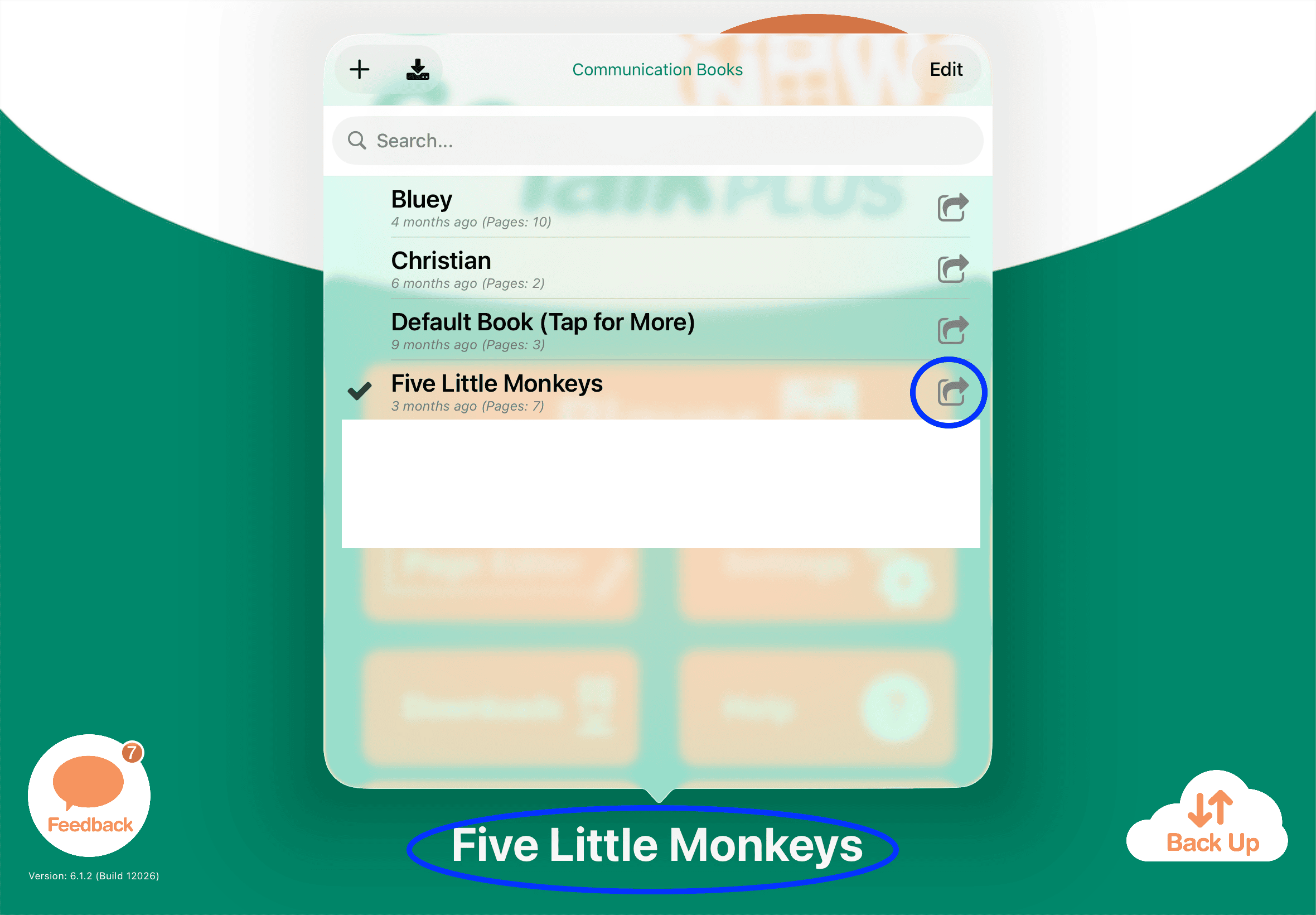
Screenshot of Communication Books list with “Five Little Monkeys” selected and the share icon highlighted on the right.
Screenshot of Communication Books menu with options including Rename, Duplicate, and Back Up/Restore, with “Share Compressed Book” highlighted.
Screenshot of iPad share menu with AirDrop highlighted alongside options like GoTalk NOW, Messages, and Mail.

Import

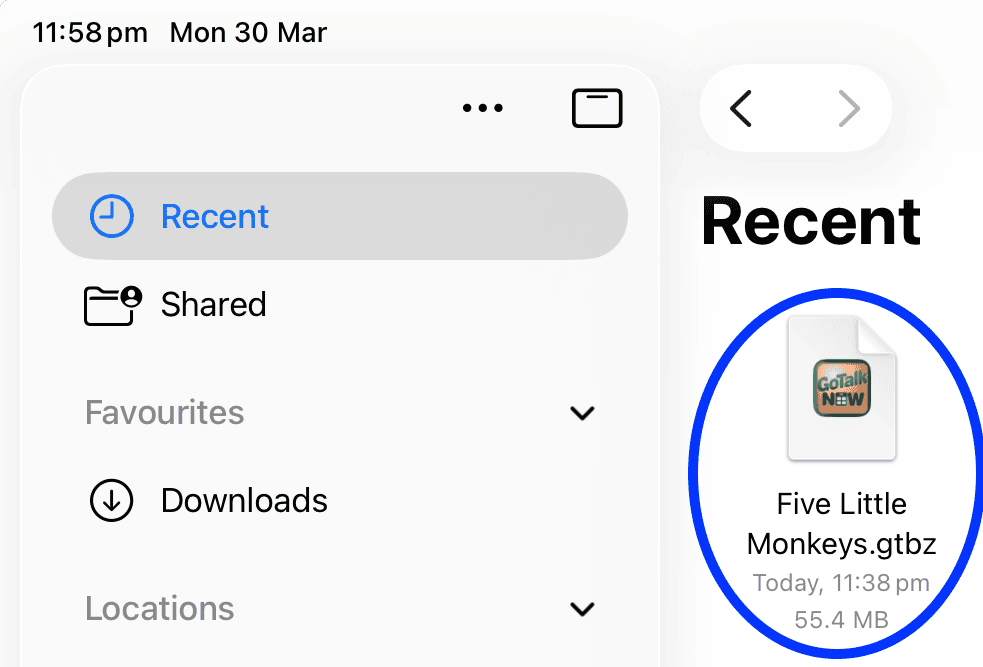
  1. Open the .gtbz file in Files
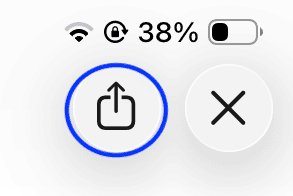
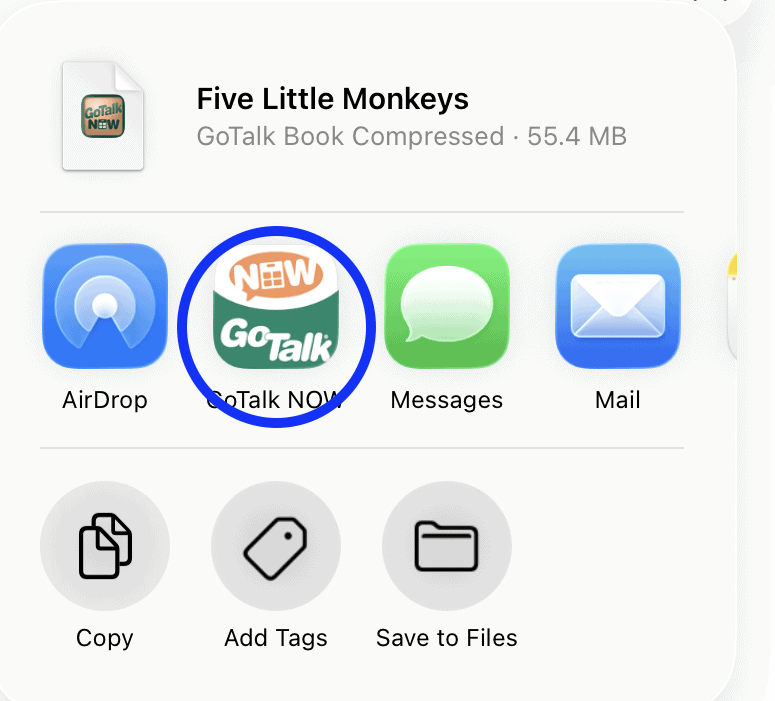
  2. Tap Share → GoTalk Now
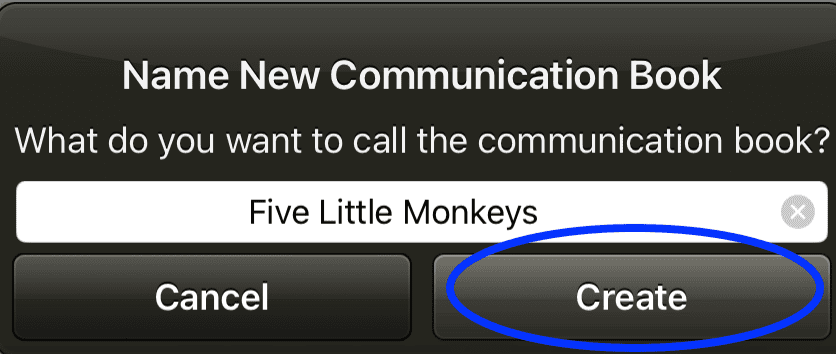
  3. Rename if needed
  4. Tap Create
Screenshot of iPad file browser with “Recent” selected and a file named “Five Little Monkeys.gtbz” highlighted, showing file size and time saved.
Close-up of iPad screen showing the share icon (square with upward arrow) highlighted next to a close (X) button and battery status.
Screenshot of iPad share menu with GoTalk Now highlighted alongside options like AirDrop, Messages, and Mail.
Screenshot of “Name New Communication Book” dialog with text field showing “Five Little Monkeys” and the Create button highlighted.
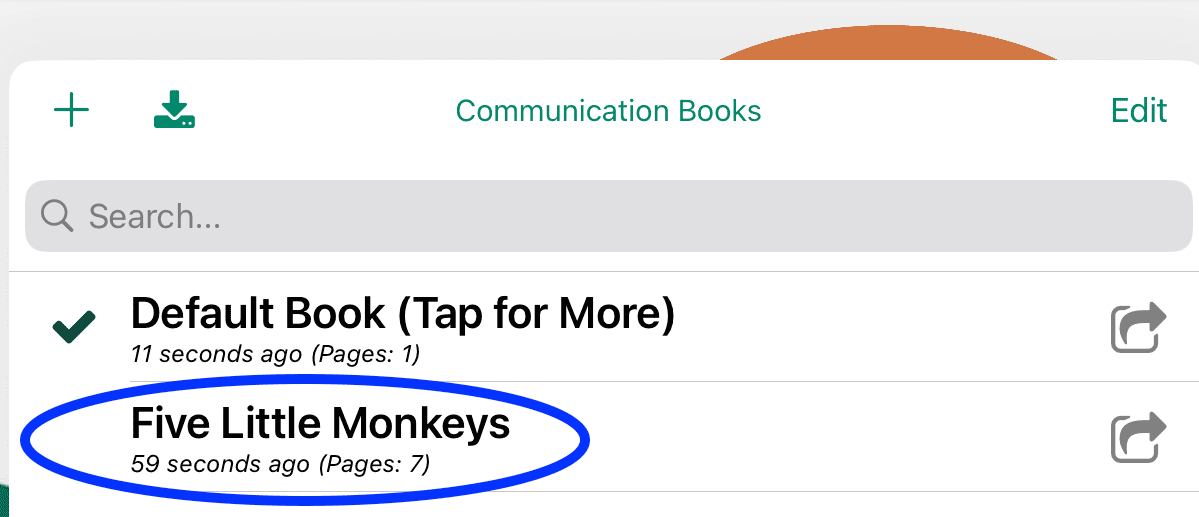
Screenshot of Communication Books list with “Five Little Monkeys” highlighted below “Default Book (Tap for More)”.

AirDrop from Pictello

Export and AirDrop

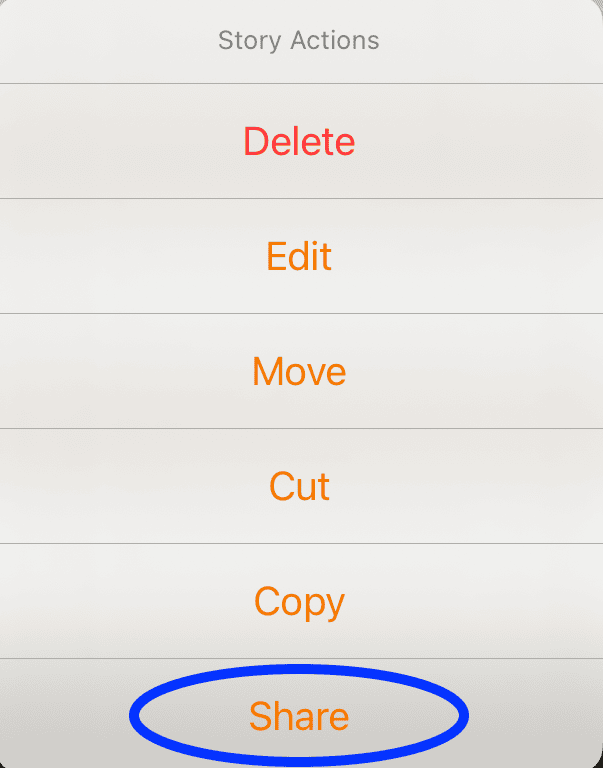
  1. Tap Edit Select the story
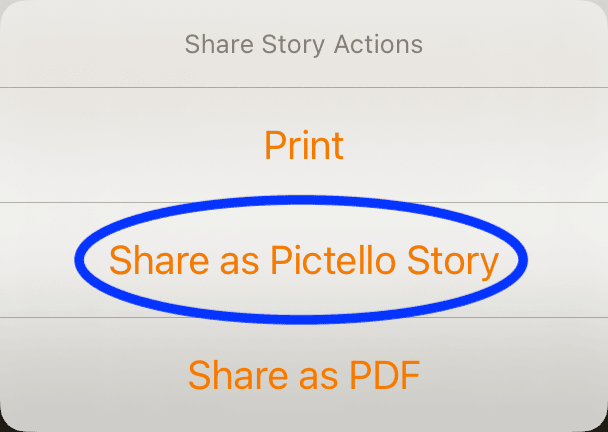
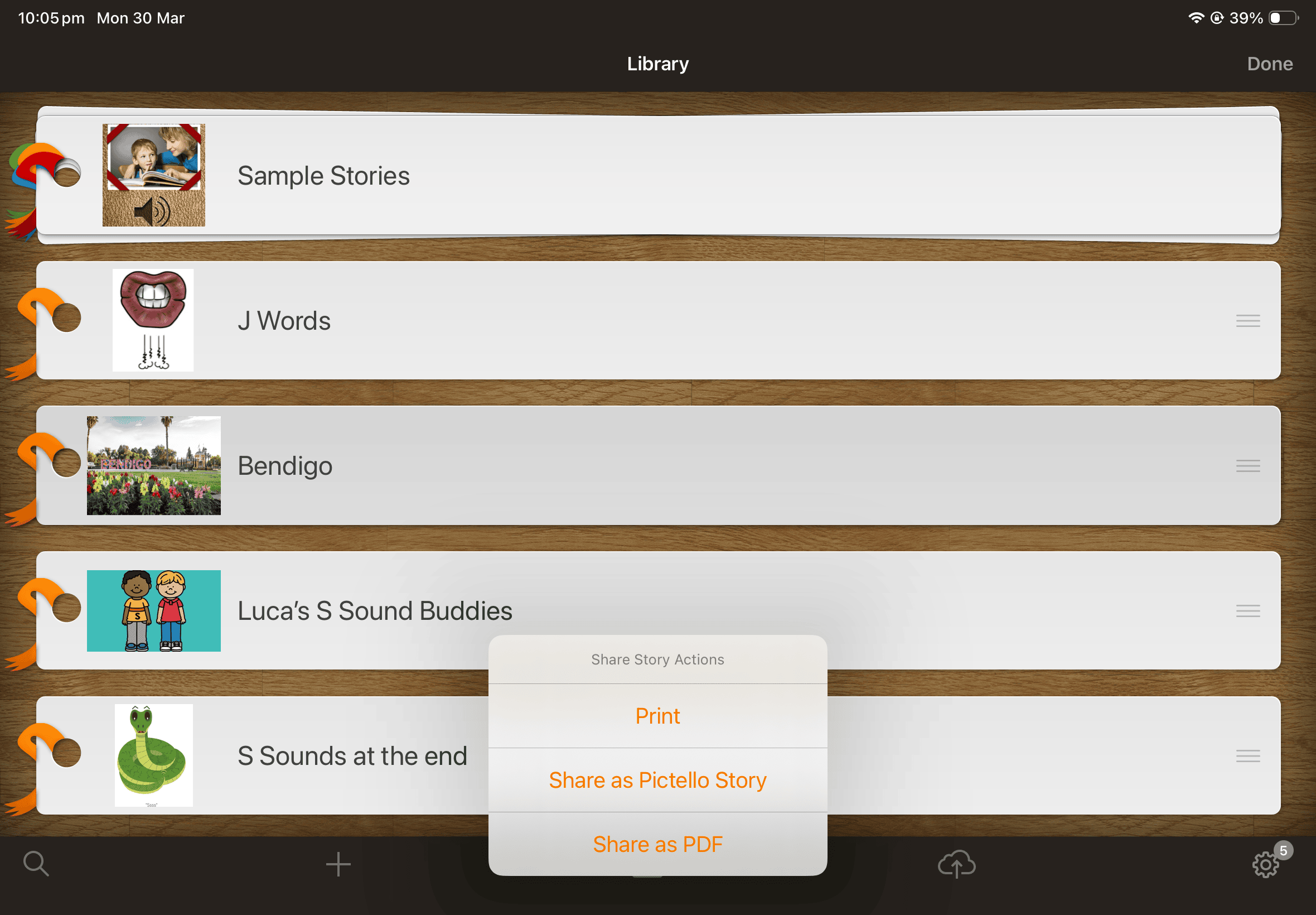
  2. Tap Share → Share as Pictello Story
  3. Tap AirDrop
Screenshot of Pictello Story Actions menu with options including Delete, Edit, Move, Cut, Copy, and Share, with “Share” highlighted at the bottom.
Screenshot of Pictello Share Story Actions menu with options including Print, Share as Pictello Story, and Share as PDF, with “Share as Pictello Story” highlighted.
Screenshot of iPad share screen displaying a Pictello story file titled “Bendigo_2286” with AirDrop highlighted as the selected sharing option.

Import

  1. Open file in Files app
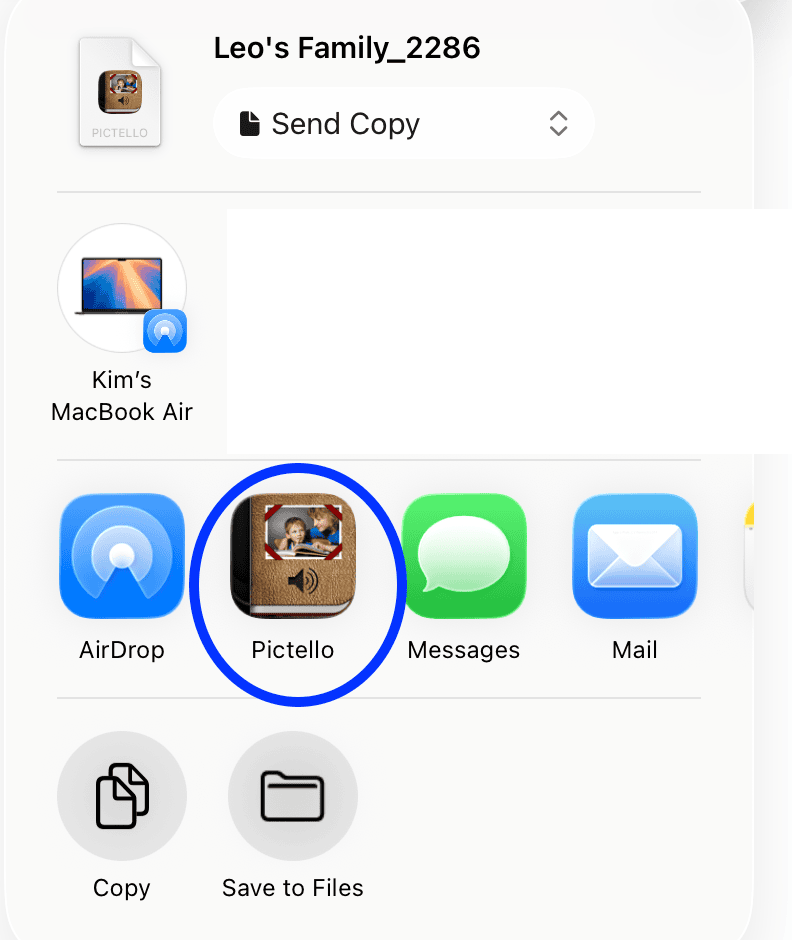
  2. Tap Share → Pictello Story will open in the app
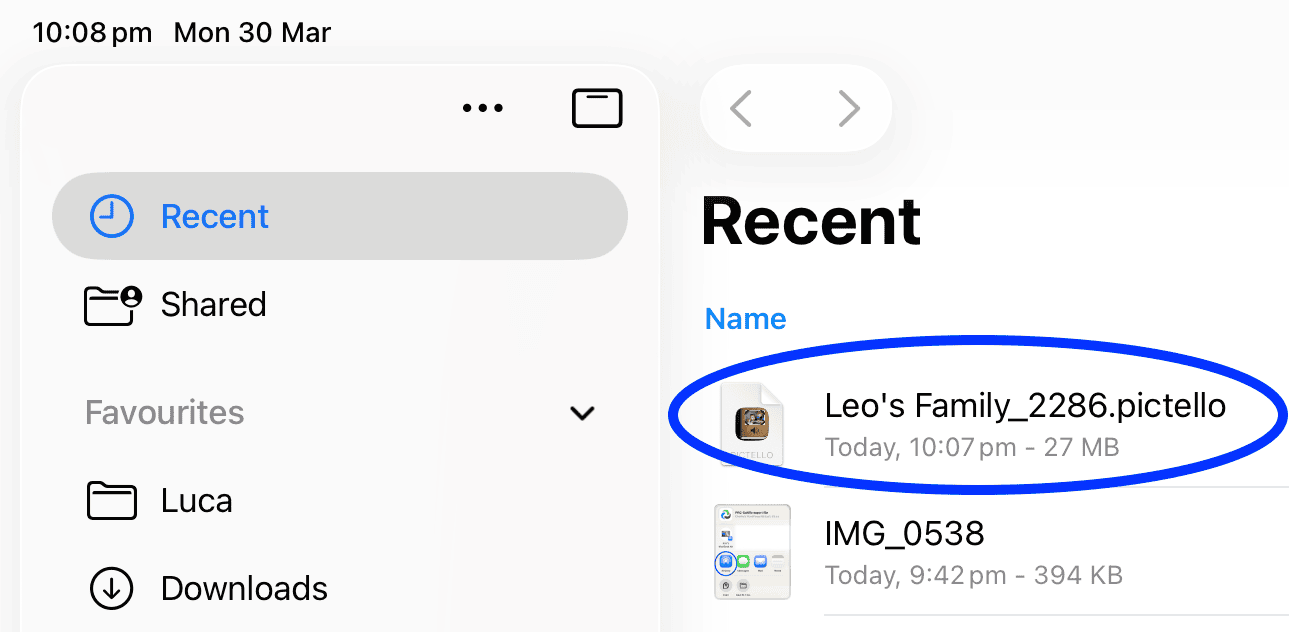
Screenshot of the Files app on an iPad showing the Recent folder with a Pictello file “Leo’s Family_2286.pictello” highlighted.

When the file opens, tap on the Share icon
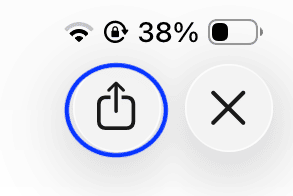
Close-up of iPad screen showing the share icon (square with upward arrow) highlighted next to a close (X) button and battery status.
Screenshot of iPad share screen displaying a Pictello file with the Pictello app icon highlighted, indicating selection to open the file in the app.
  • AirDrop from Pictello

    Kim Magee
    Clinical Expert

    Kim Magee

    B.App.Sc. (Speech Path) | 30+ Years Experience

    Kim is a clinical expert with 30 years of experience in the disability sector. Formerly the manager of ComTEC, the ILC, and Yooralla’s AT services, she specialises in bespoke 3D-printed solutions and AAC device trials for the NDIS community.

    Export and AirDrop

    1. Tap Edit Select the story
    2. Tap Share → Share as Pictello Story
    3. Tap AirDrop
    Screenshot of Pictello Story Actions menu with options including Delete, Edit, Move, Cut, Copy, and Share, with “Share” highlighted at the bottom.
    Screenshot of Pictello Share Story Actions menu with options including Print, Share as Pictello Story, and Share as PDF, with “Share as Pictello Story” highlighted.
    Screenshot of iPad share screen displaying a Pictello story file titled “Bendigo_2286” with AirDrop highlighted as the selected sharing option.

    Import

    1. Open file in Files app
    2. Tap Share → Pictello Story will open in the app
    Screenshot of the Files app on an iPad showing the Recent folder with a Pictello file “Leo’s Family_2286.pictello” highlighted.

    When the file opens, tap on the Share icon
    Close-up of iPad screen showing the share icon (square with upward arrow) highlighted next to a close (X) button and battery status.
    Screenshot of iPad share screen displaying a Pictello file with the Pictello app icon highlighted, indicating selection to open the file in the app.

AirDrop from Avaz

Export and AirDrop

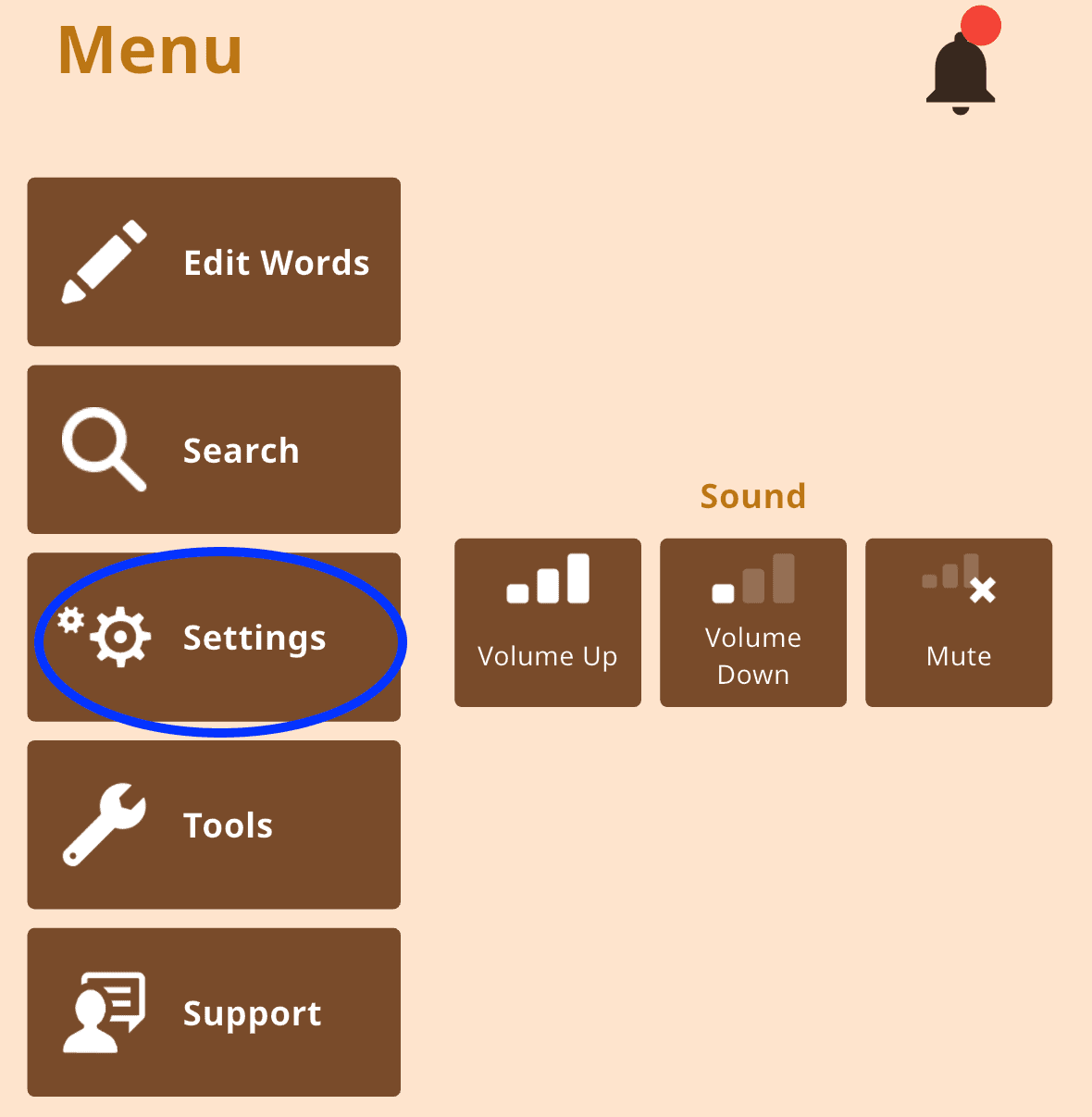
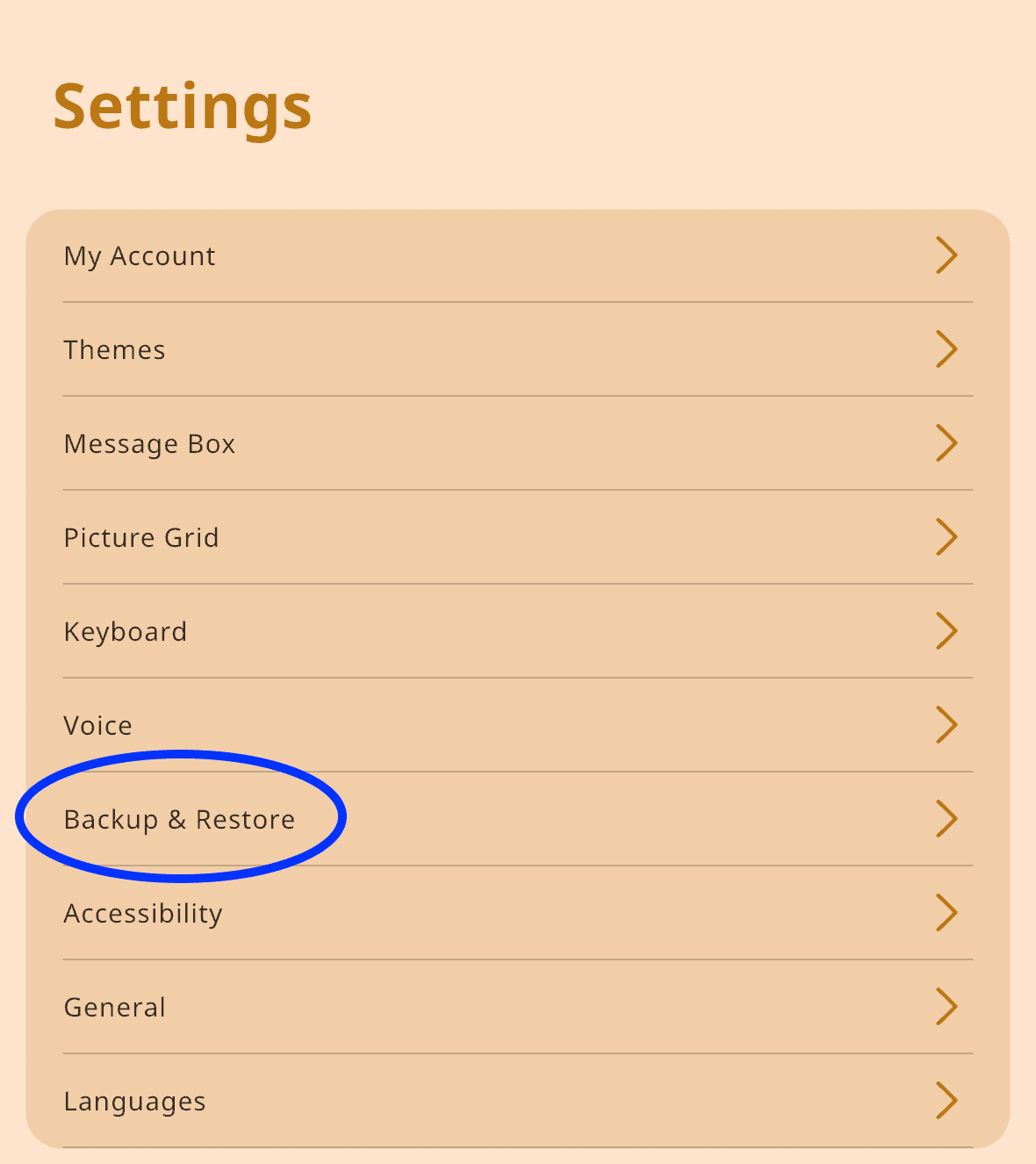
  1. Tap Menu → Settings → Backup & Restore
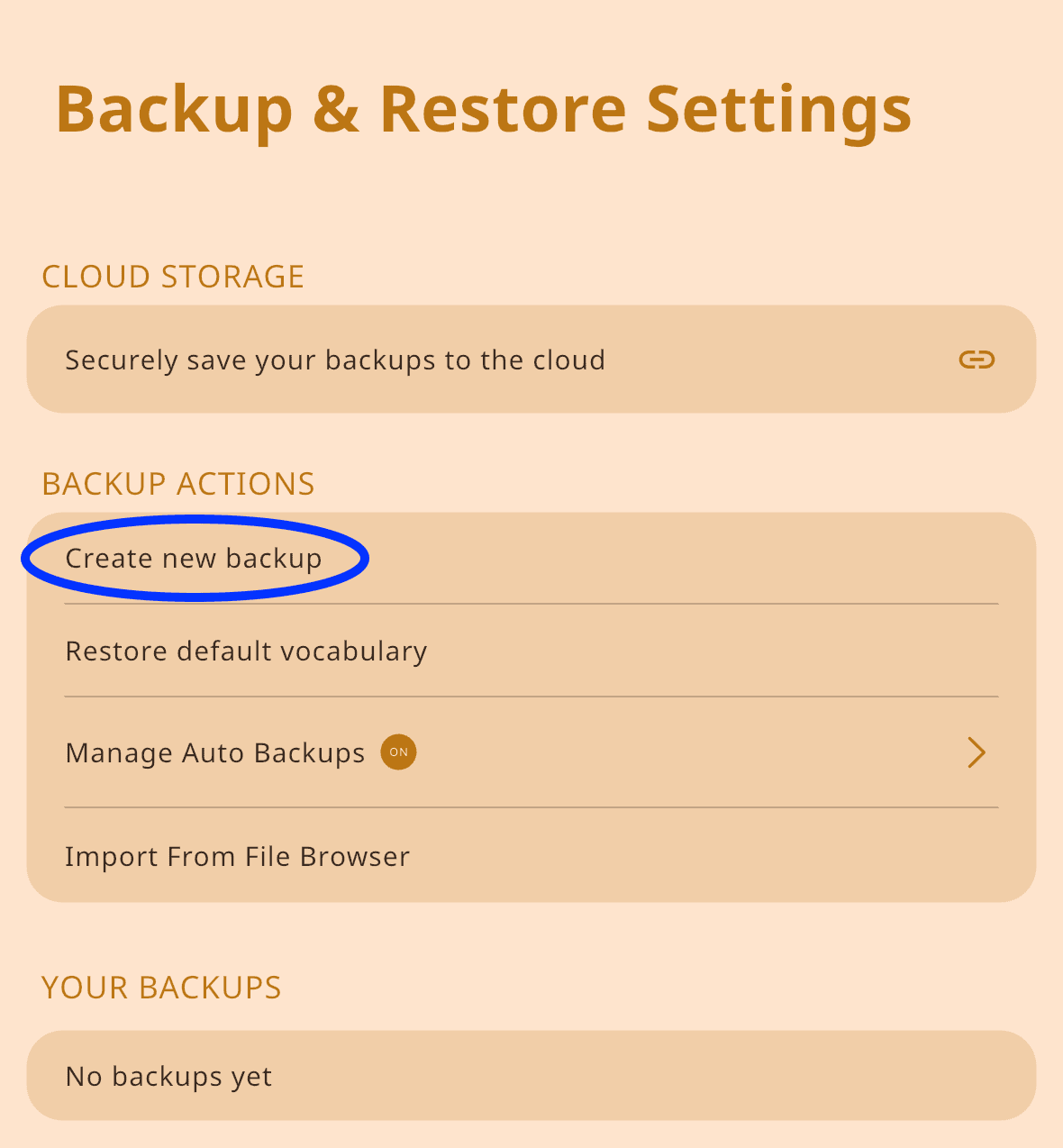
  2. Select Create new backup
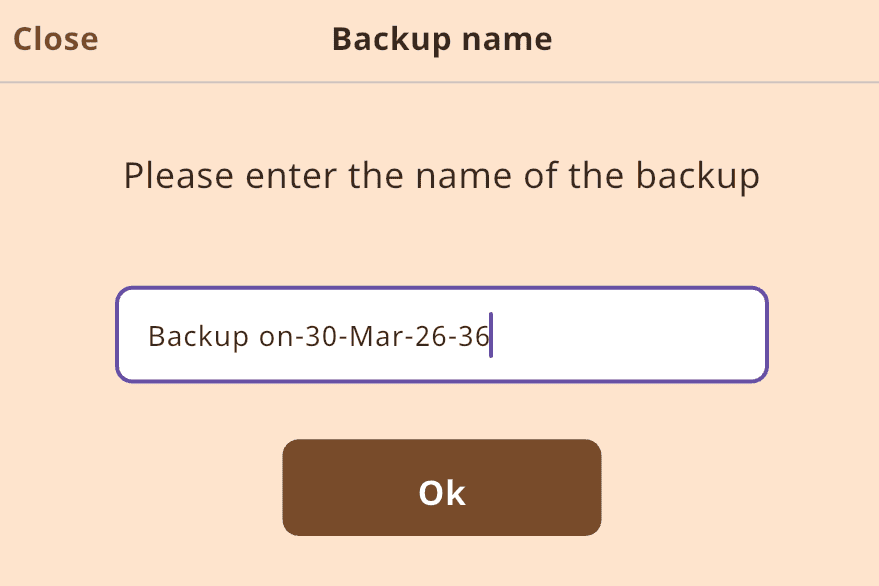
  3. Rename if needed Tap Ok
  4. The file is saved in Your Backups
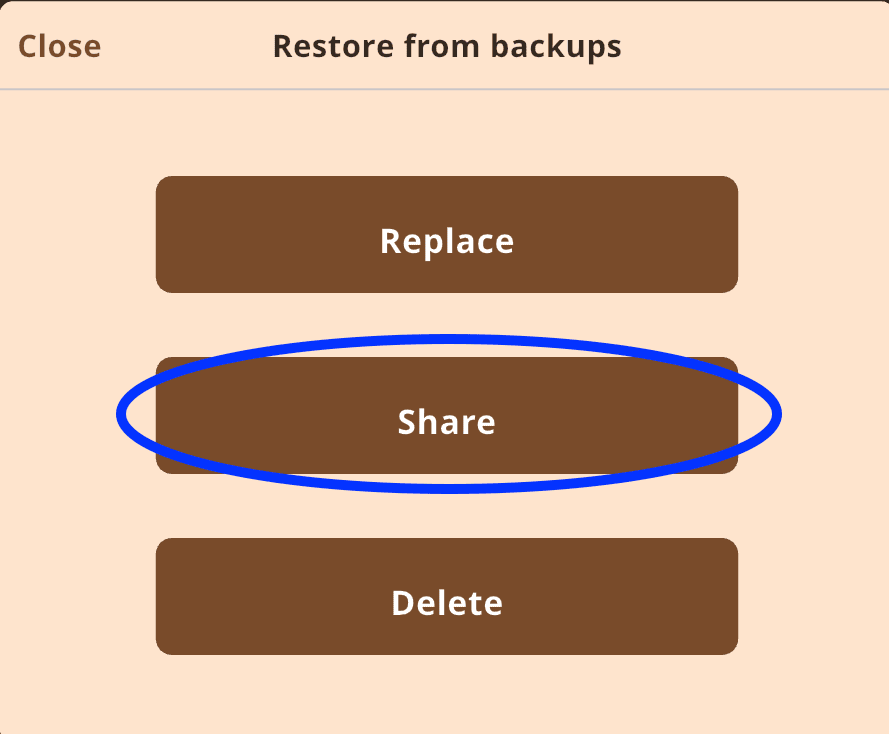
  5. Tap on the file name
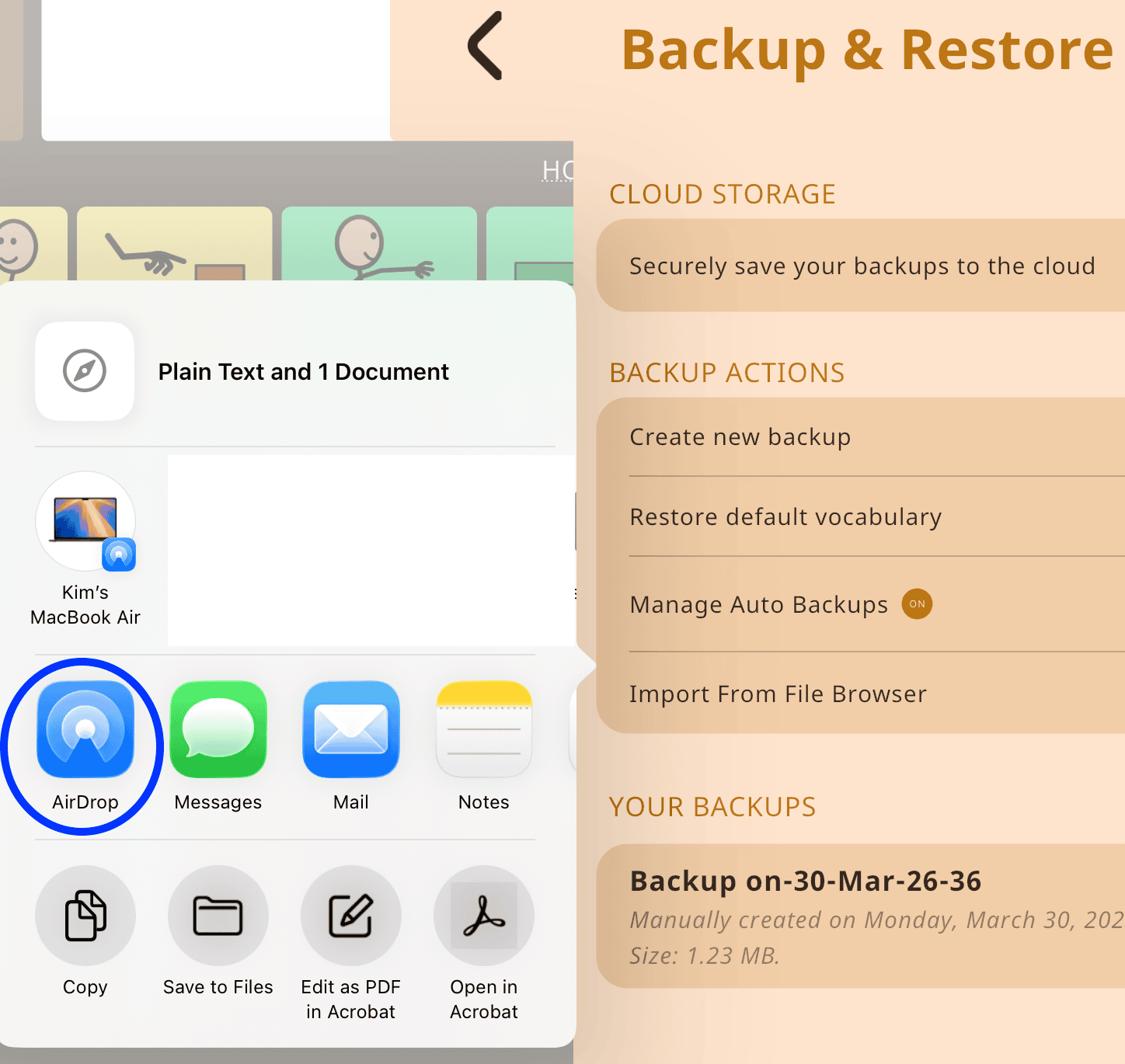
  6. Share → AirDrop
Screenshot of app menu with options including Edit Words, Search, and Tools, with “Settings” highlighted.
Screenshot of Settings menu with options including My Account, Themes, and Voice, with “Backup & Restore” highlighted.
Screenshot of Backup & Restore Settings with “Create new backup” highlighted under Backup Actions.
Screenshot of “Backup name” screen prompting the user to enter a name, with a text field containing “Backup on-30-Mar-26-36” and an OK button below.
Screenshot of “Restore from backups” screen showing buttons Replace, Share, and Delete, with “Share” highlighted.
Screenshot of iPad share menu with AirDrop highlighted among options like Messages, Mail, and Notes.

Import

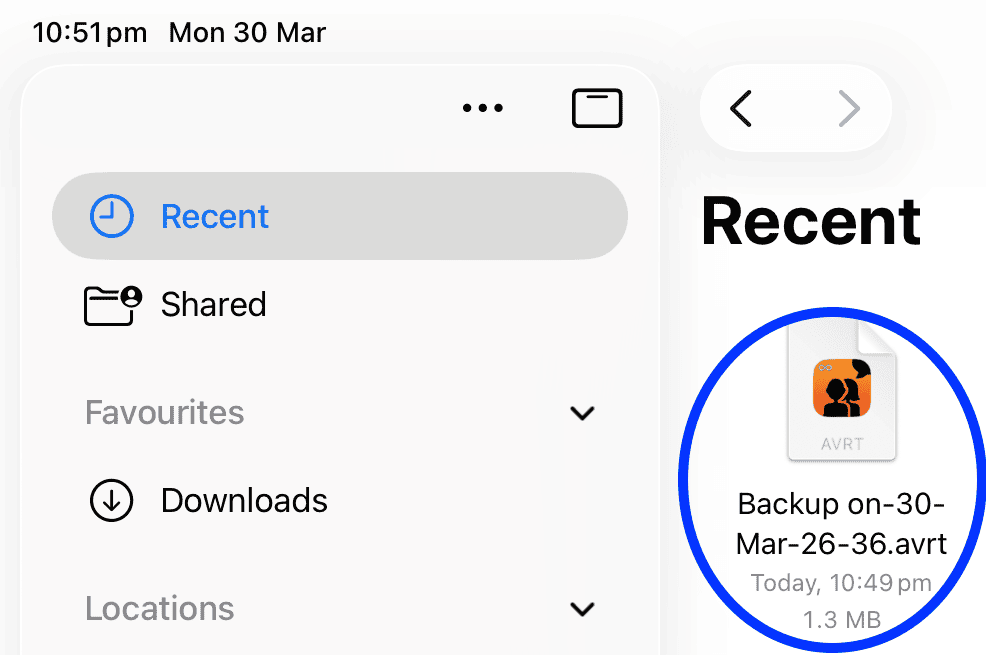
  • Tap the file in Files app
  • It opens in Avaz
  • Go to Backup & Restore → Backups
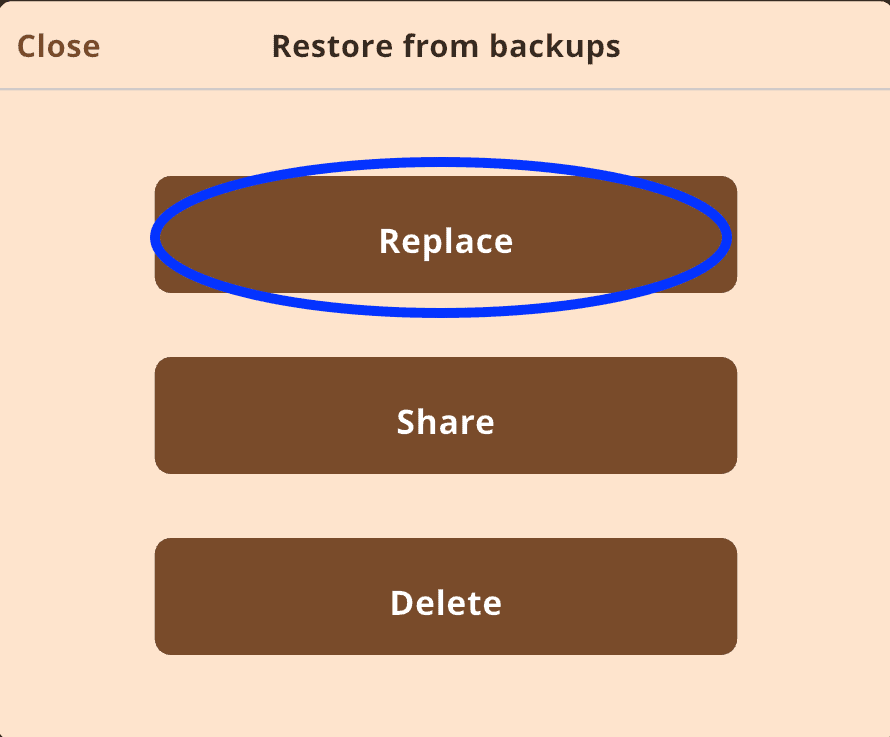
  • Select file → Replace vocabulary
Screenshot of iPad file browser with “Recent” selected and a file named “Backup on-30-Mar-26-36.avrt” highlighted.
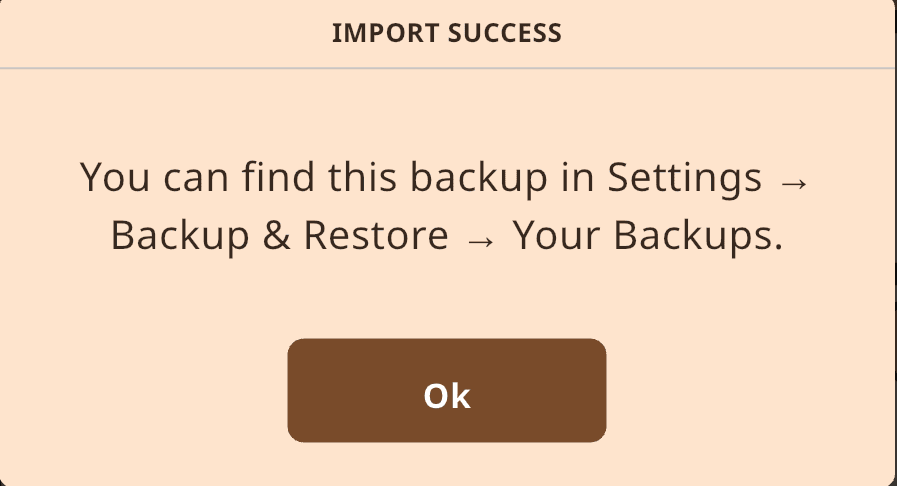
Screenshot showing “Import Success” message stating the backup can be found in Settings > Backup & Restore > Your Backups, with an OK button.
Screenshot of “Restore from backups” screen showing buttons Replace, Share, and Delete, with “Replace” highlighted.

You will see a message stating that the current vocabulary will be replaced with the selected vocabulary (you can always backup the current vocabulary first if you like). Then tap on Replace.
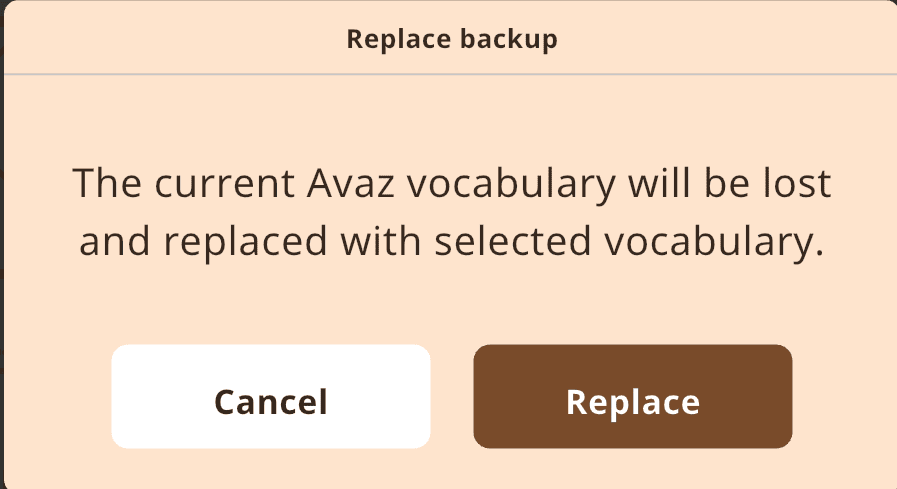
Screenshot of “Replace backup” confirmation message explaining current vocabulary will be lost, with Cancel and Replace buttons.

Your new vocabulary file is ready to use!

💡 Helpful tip

Always rename backup files with the client’s name and date before AirDropping.
This makes them much easier to identify later.

FAQ

How do I transfer AAC pagesets between iPads?

Export the page set from the AAC app, share it via AirDrop, and import it on the receiving device.

Can you AirDrop Proloquo2Go backups?

Yes, Proloquo2Go allows you to export backup files (.p2gbk) and send them via AirDrop.

Is AirDrop better than cloud backup for AAC?

AirDrop is faster for in-person transfers, while cloud backup is better for long-term storage.

What is the fastest way to transfer AAC vocabulary?

AirDrop is typically the quickest and most reliable method, especially during therapy sessions.

Final tip for speech pathologists

If you’re working with a client trialling an AAC device, it’s a good habit to AirDrop a copy of the customised page set to your own iPad before the trial ends.

This ensures you have a backup of the work you’ve done and makes it much easier to support the client if they transition to their own device later.

Small steps like this can save significant time and help maintain consistency in a client’s communication system.

Need help?

If you have questions about AAC device trials, transferring pagesets, or setting up devices, feel free to contact KimTech Communication Assistive Technology—I’m always happy to help.

Previous
GoTalk 9+ Lite Touch vs QuickTalker FeatherTouch 12: A Practical Guide
Next
Empowering Access: Tactile AAC Keyguards and High Contrast Symbols for Vision-Impaired Users (LAMP Words for Life iPad Guide)

Explore our solutions and discover how KimTech can support your communication assistive technology needs.

Communication devices and assistive technology (AT) for hire

Custom keyguards

iPad hire for NDIS

Rated 5 Stars on Google

KimTech acknowledges that we operate on the unceded sovereign lands of the Wurundjeri Woi Wurrung and Bunurong peoples of the Kulin Nation. We pay our deepest respects to the Elders of these lands, and to all First Nations people, and express our gratitude for the land on which we innovate and create, following in the footsteps of countless generations of First Nations people who have done so before us.

All rights reserved © KimTech 2026 | Privacy Policy | Terms & Conditions | Hire Terms